
Overview
The TwikBot Platform, accessible at http://platform.twikit.com, is the central management environment where all product configuration, asset management, commerce, and account management takes place. This page provides an orientation to the platform interface before you begin working in it.
Navigation Menu
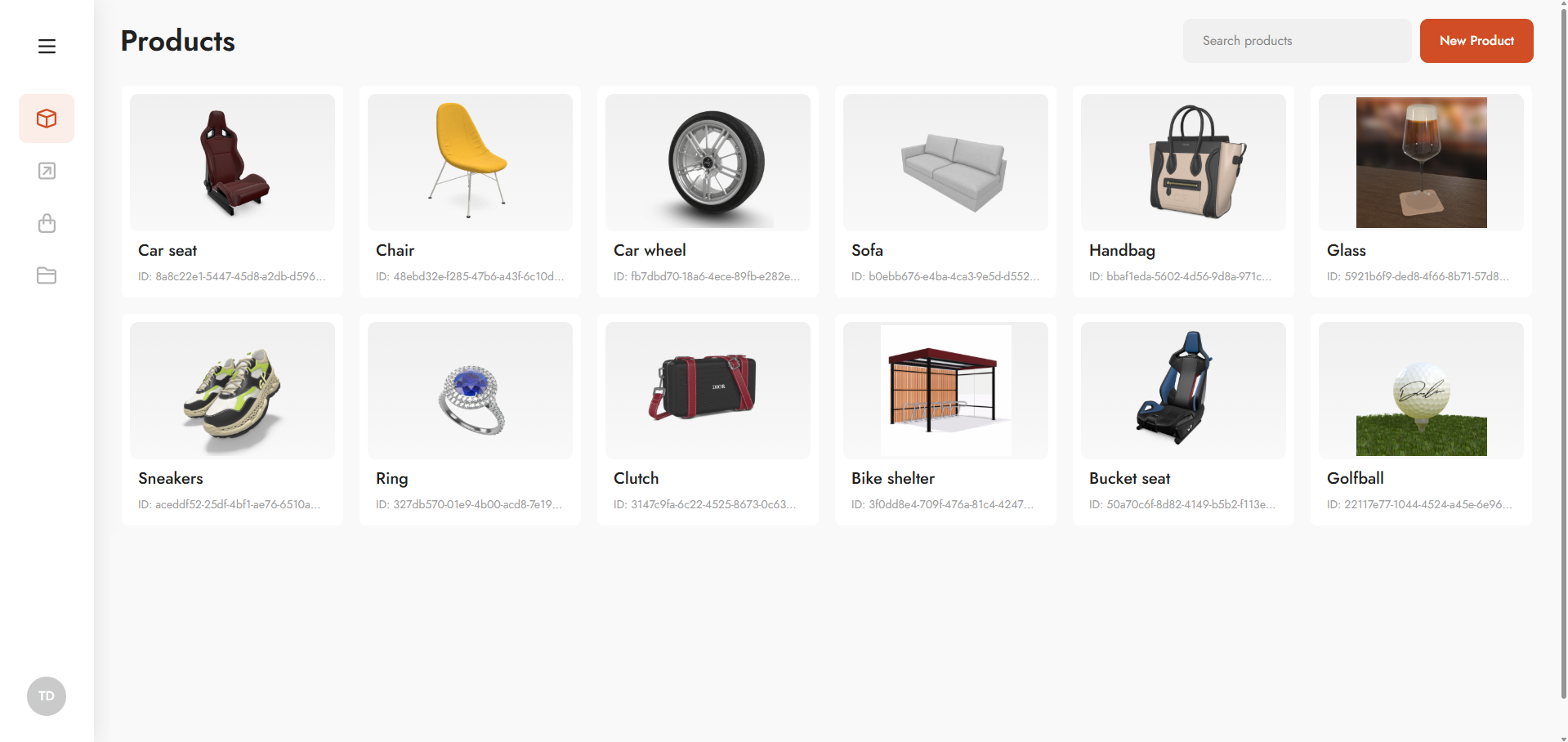
The navigation menu runs along the left side of the platform and provides access to all main modules. It can be collapsed to icon-only view by clicking the ☰ icon at the top, giving you a wider workspace when needed.
Main Modules
|
Module |
Description |
|---|---|
|
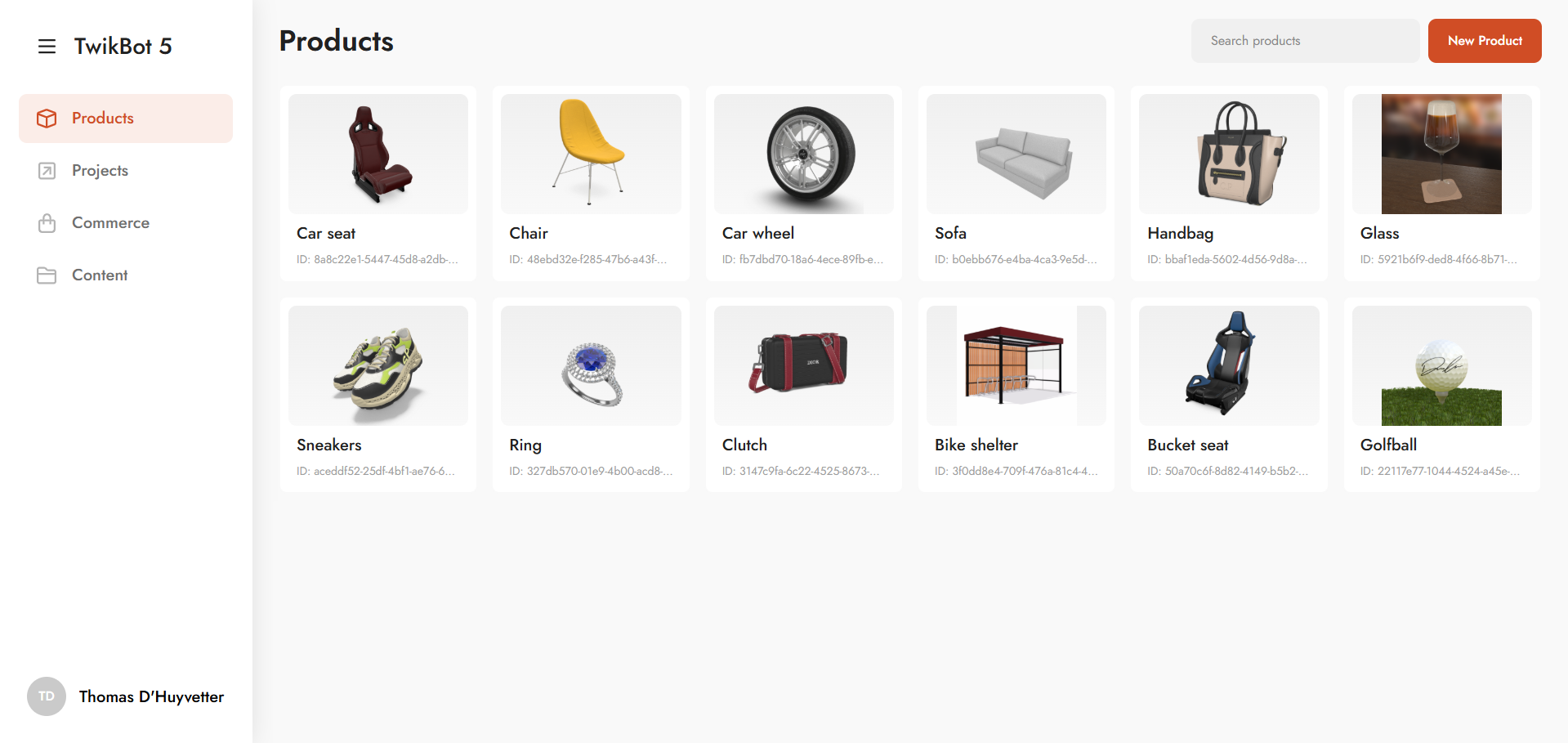
Products |
View, create, and manage configurable products. Access the Graph Editor to build and modify product logic. |
|
Projects |
Manage projects that publish products to specific deployment channels and end user environments. |
|
Commerce |
Handle the full order and quote lifecycle generated from configurator activity. |
|
Content |
Manage product resources — 3D assets, textures, and materials — used across product configurators. |
Search
Each module (Products and Projects) includes a search function to quickly locate items in larger catalogues. Use it to filter by name when working with extensive product libraries or project lists.
Commerce Sub-modules
The Commerce module contains four dedicated sections. Visibility of these sections depends on the roles and permissions assigned to the user.
|
Section |
Description |
|---|---|
|
Configurations |
Overview of all saved configurations submitted by end users |
|
Quotations |
Overview of all quotation requests generated from configurations |
|
Orders |
Overview of all customer orders and their status |
|
Workflows |
Manage the processing workflow for incoming orders |
Account Section
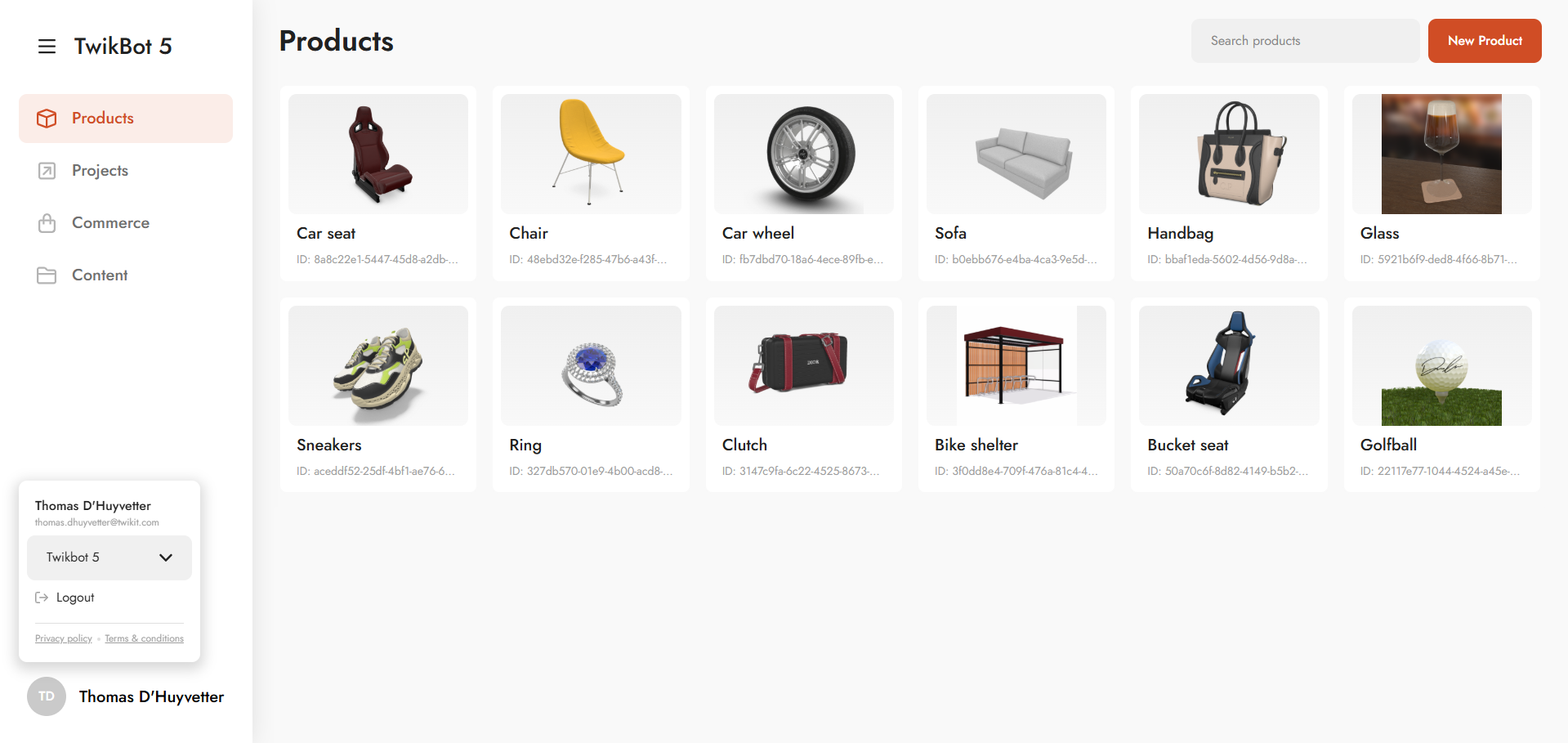
The account section is located at the bottom of the navigation menu and provides access to organisation and session management:
-
Organisation — A dropdown showing the currently active organisation, with the ability to switch between organisations. This is particularly relevant for partners managing multiple client accounts.
-
Logout — Safely end the current session.
-
Privacy Policy — Twikit's guidelines on user data management.
-
Terms and Conditions — The governing rules for platform usage.
If you manage multiple client organisations within TwikBot, always verify the active organisation before making changes to products, projects, or account settings. Changes made in the wrong organisation context cannot be automatically undone.
Platform Navigation Tips
-
Collapse the menu to icon-only view at any time to gain more horizontal workspace.
-
The search function in the Products and Projects modules allows you to quickly locate items in larger catalogues
-
Switch organisations from the account section at the bottom of the nav — not from within a module