Introduction
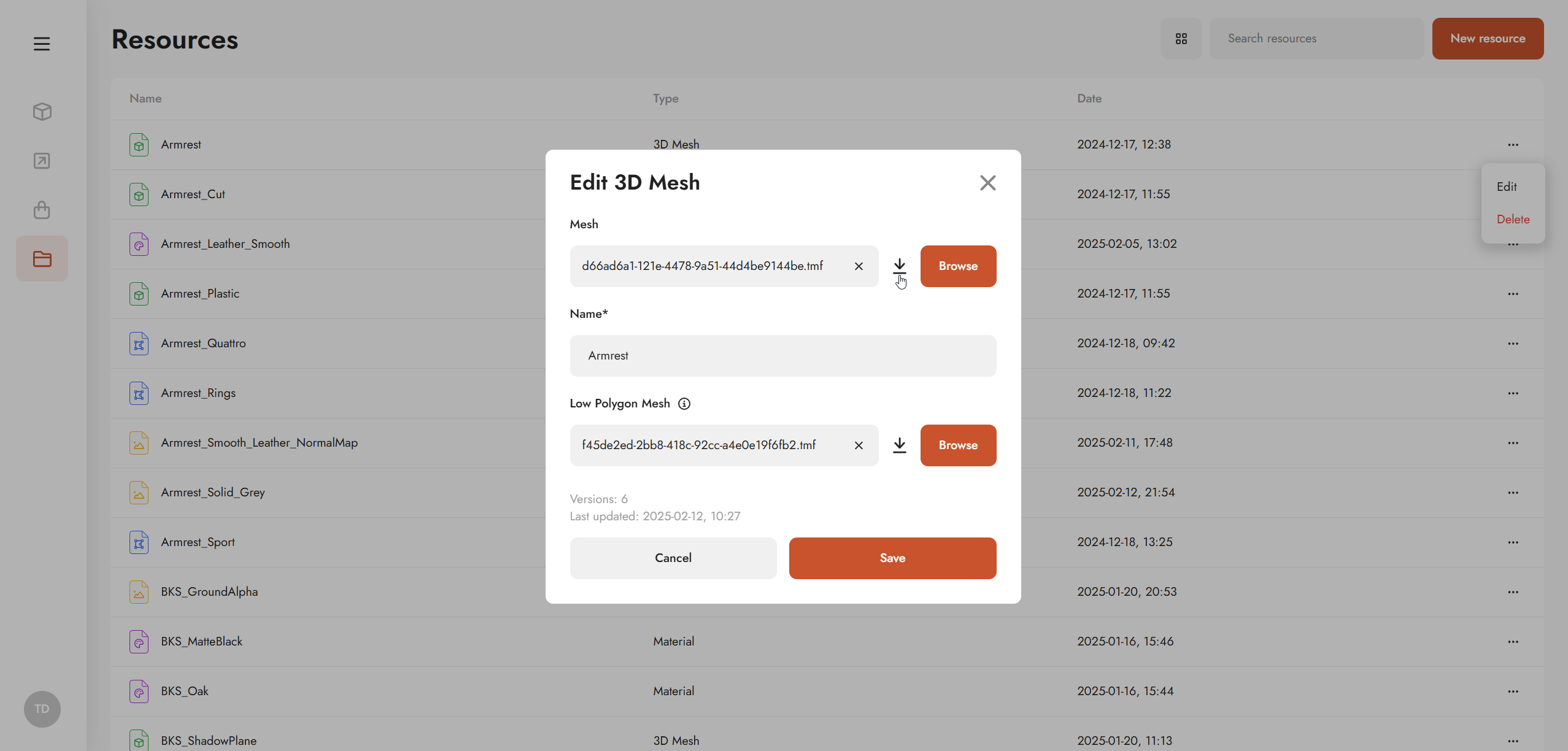
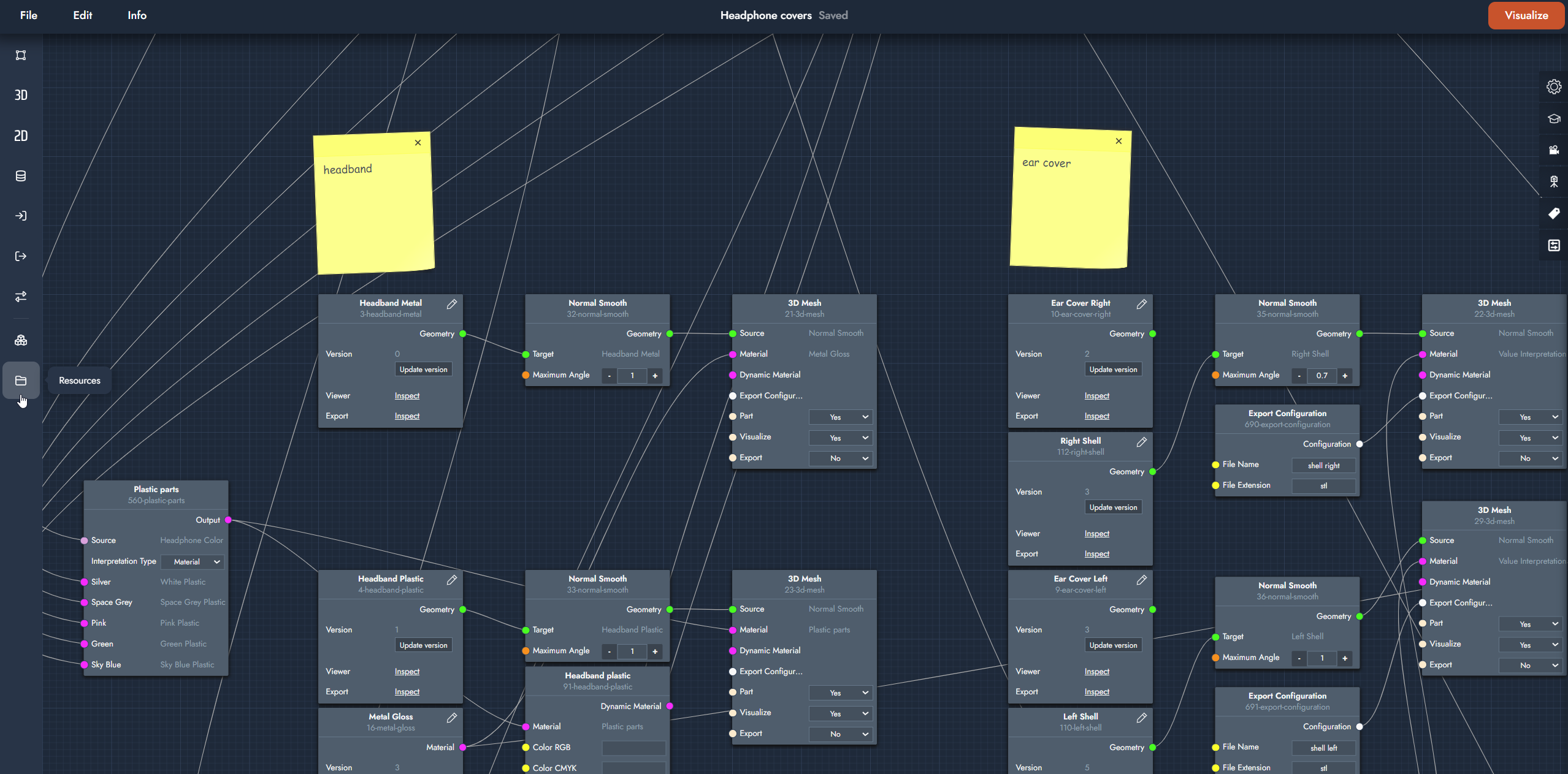
Resource management facilitates the organization and handling of product assets, including CAD data, textures and materials, vital for setting up product customizers. The Resource management module is accessible via the platform navigation menu Content or in the Resources menu of the graph editor.
Resource dashboard
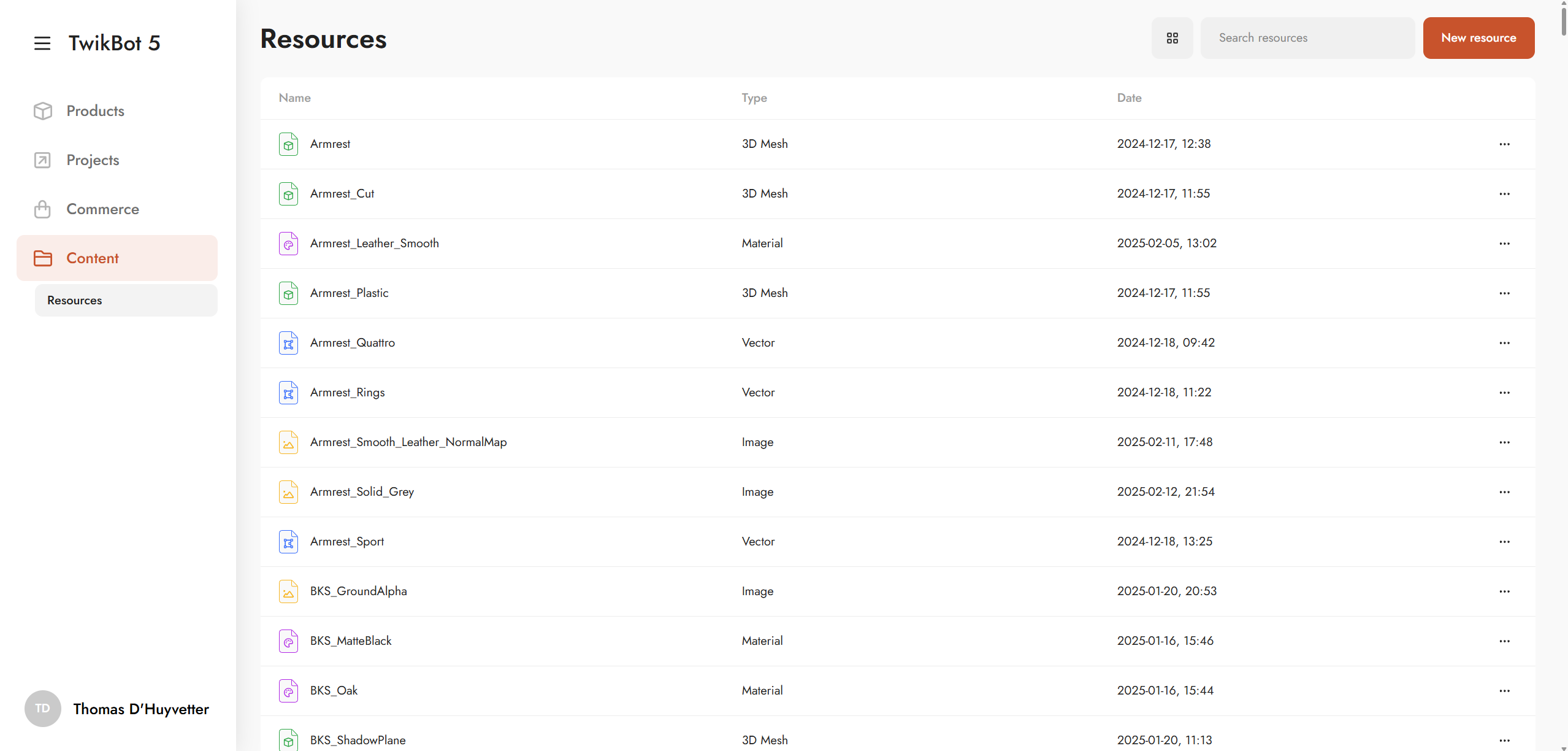
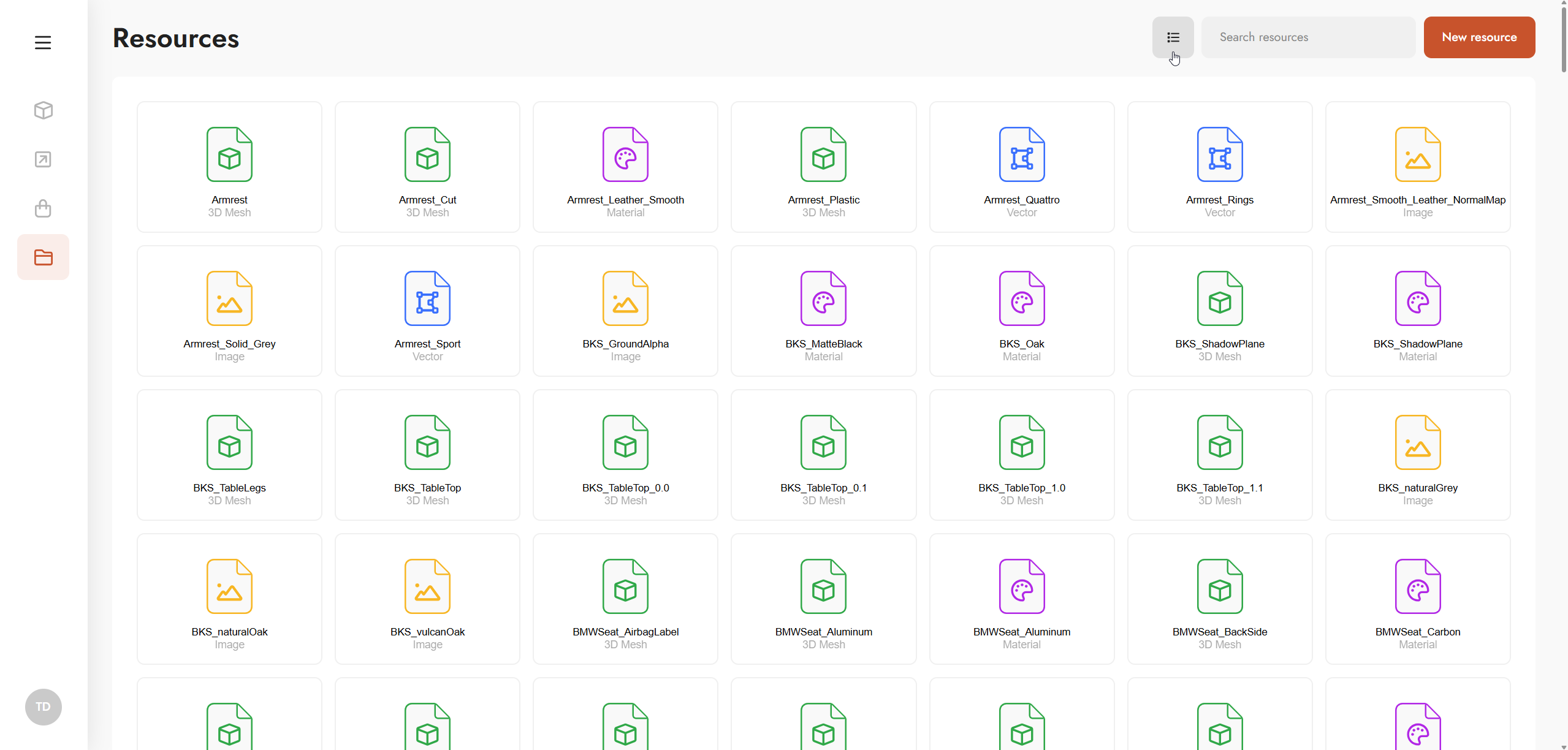
The Resource management dashboard provides a comprehensive view of the resources created across all products on the TwikBot 5 platform. The dashboard is structured with three columns - Resource Name, Resource Type, and Date Added - to facilitate efficient resource management.
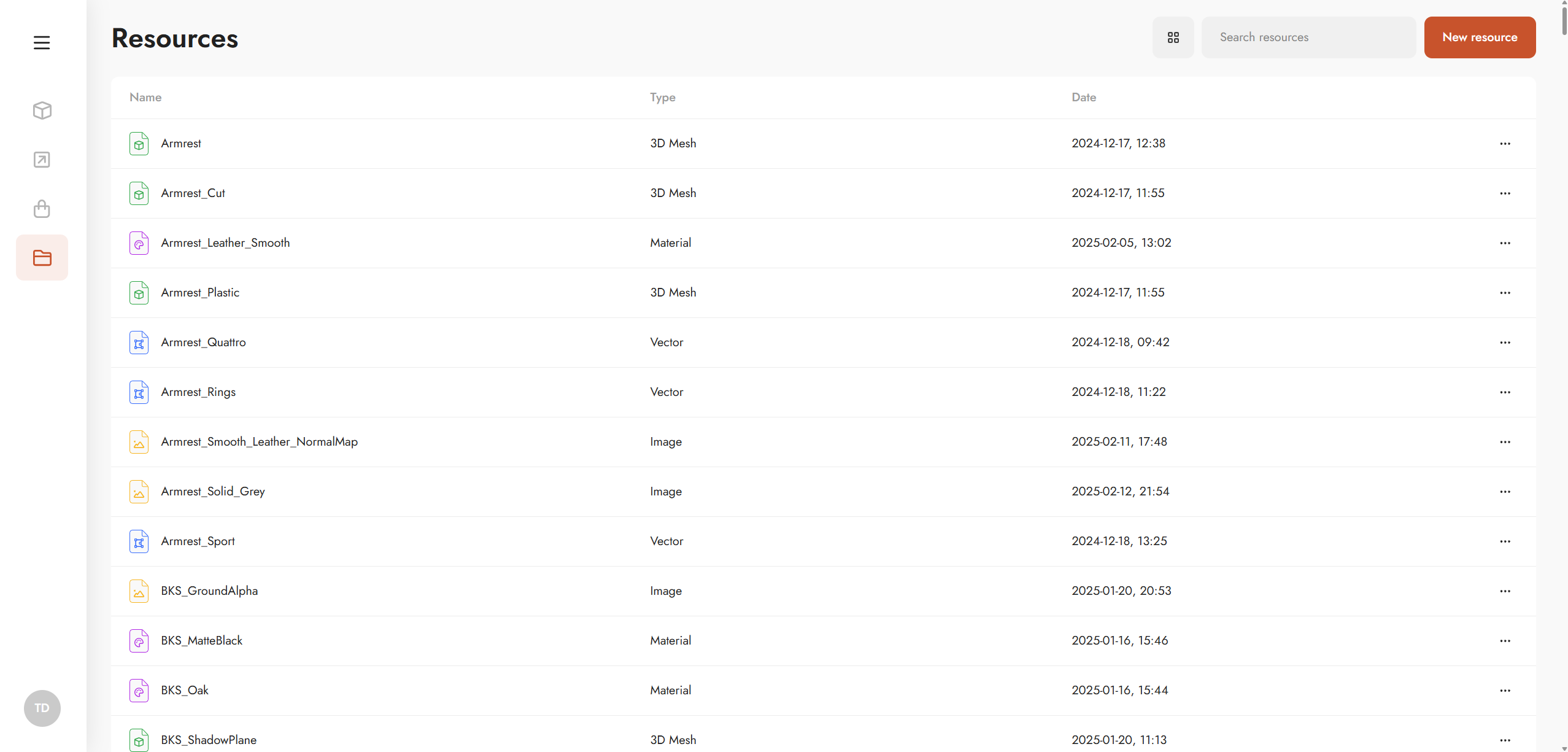
By selecting the view option at the top right of the dashboard, existing resources can be displayed in either a list or grid view.
Creating new resources
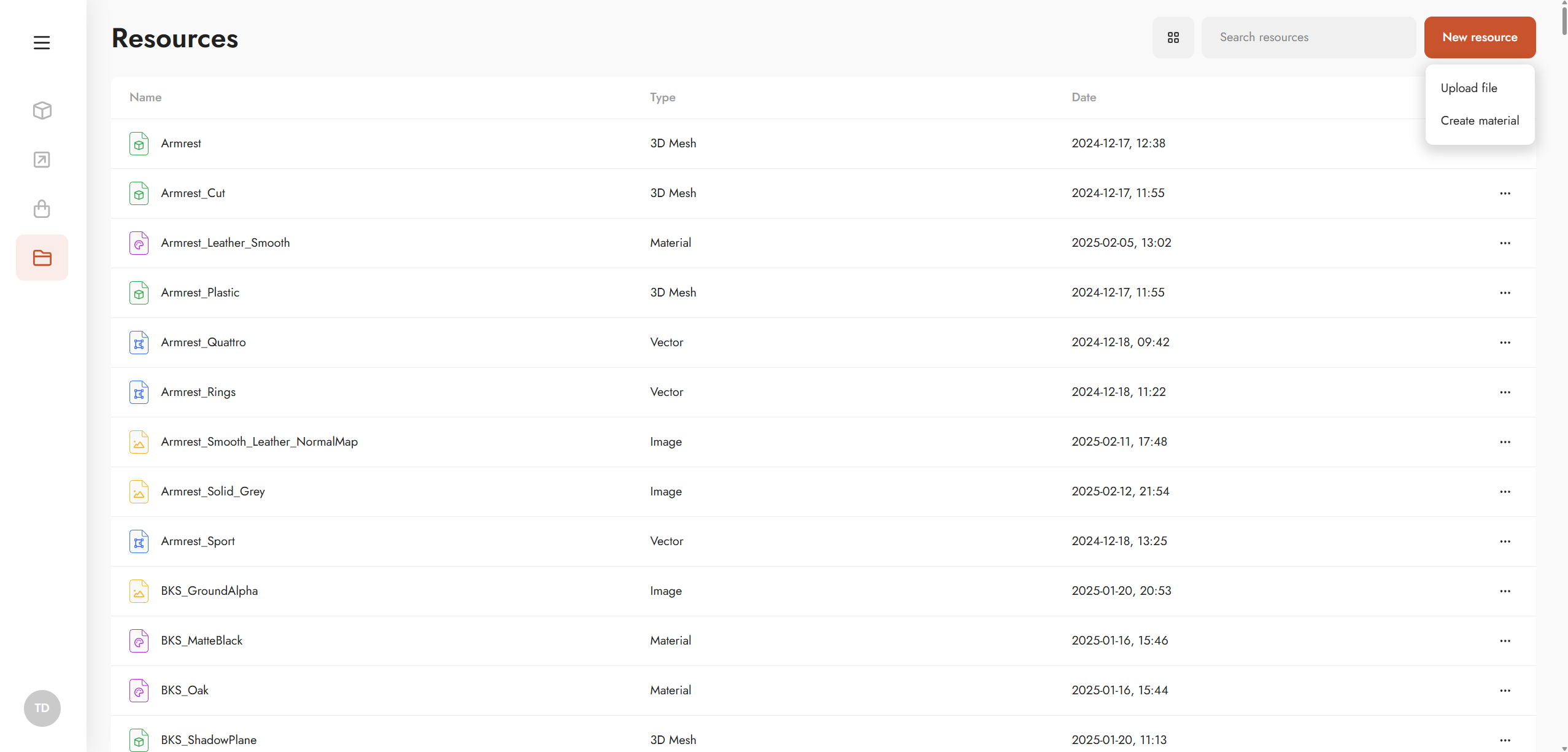
New resources can be uploaded using the New resource button. Users are provided with two choices: Upload file or Create material.
Upload file
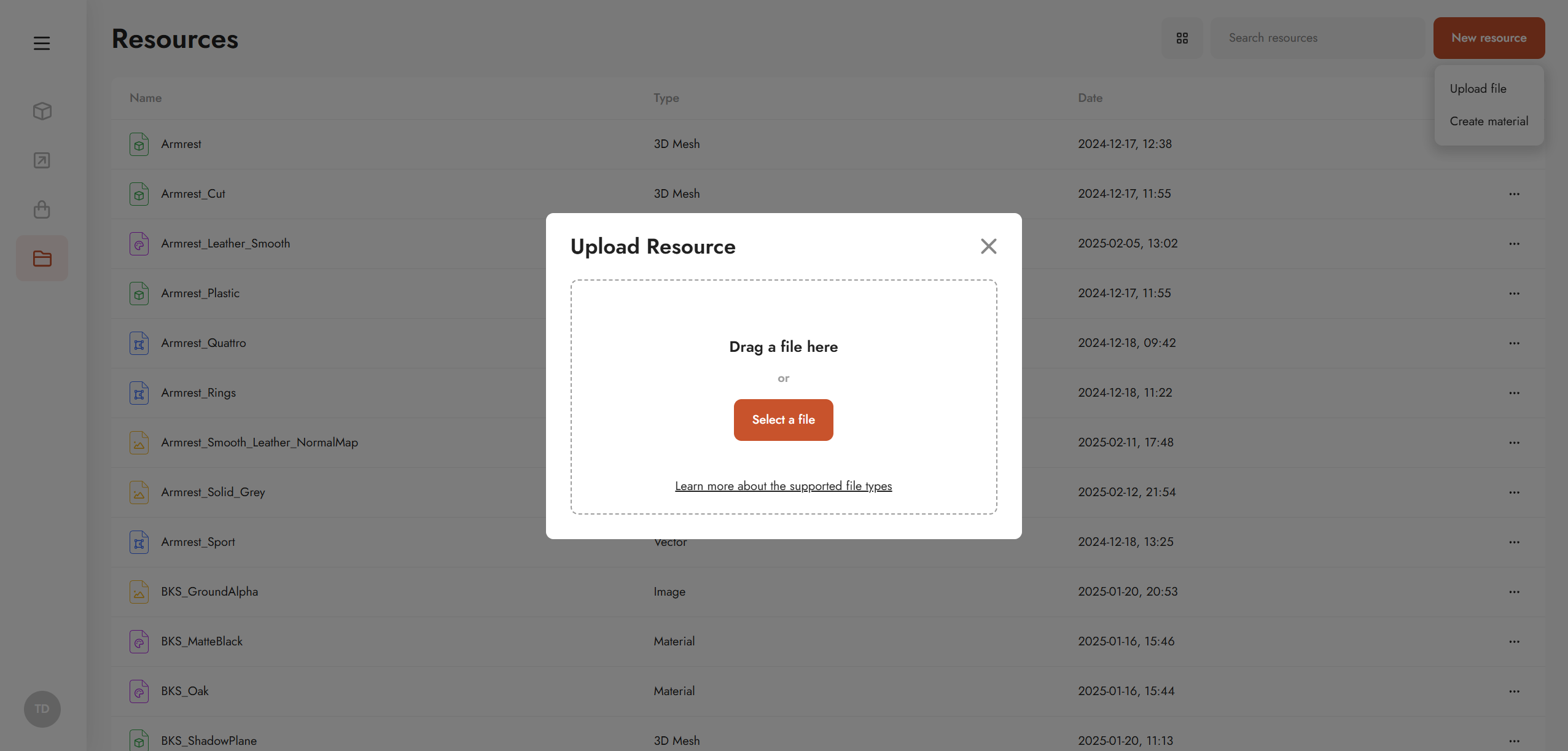
When creating a new resource, an 'Upload Resource' pop-up will appear. You have the option to either drag a resource file into the designated area or select a file manually. Further details on compatible resource file types are available in the Resources | Supported file types section.
Create material
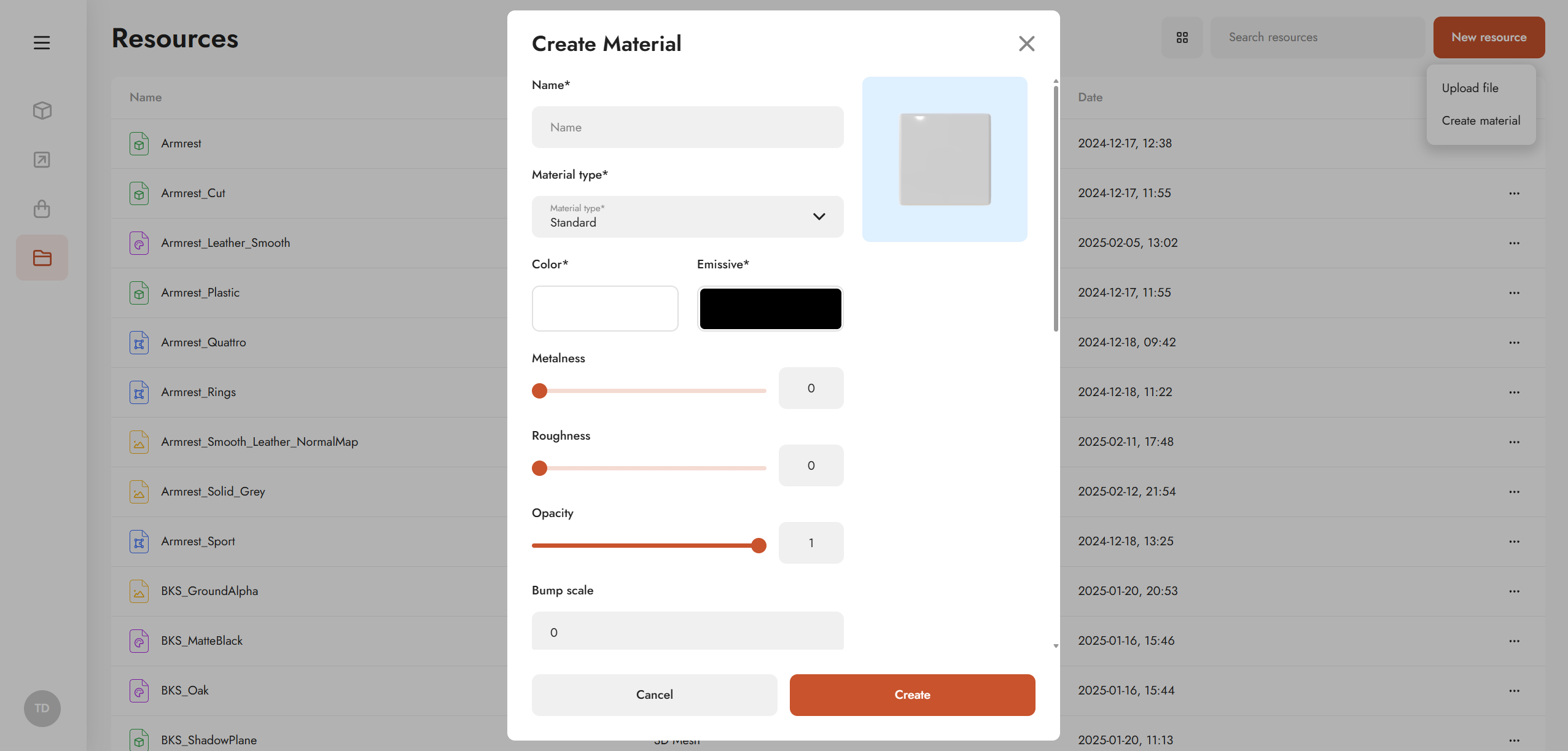
When creating a new material, a ‘Create Material’ pop-up will appear, allowing users to define both Mesh Standard as Mesh Physical material properties such as,
-
Color grade
-
Metalness, roughness and opacity level
-
Bump, normal, and roughness maps
-
Clearcoat, Sheen, Reflectivity, …
-
Among others
More information on Mesh Standard and Mesh Physical material properties can be found on:
Public documentation on Mesh Standard Material
Public documentation on Mesh Physical Material
Managing existing resources
Editing existing resources
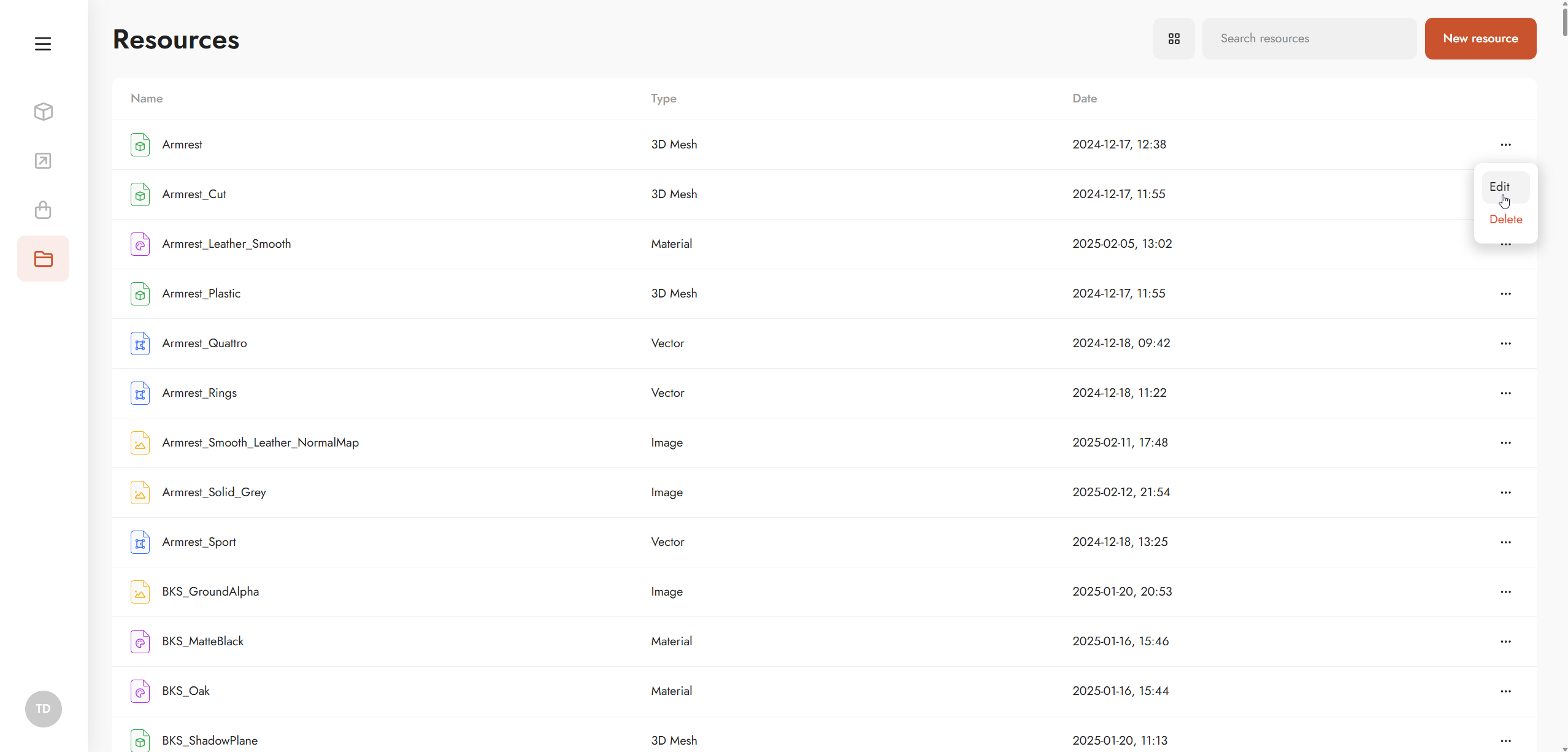
Modifications to existing resources can be made by accessing the EDIT option in the context menu ... in the Resource management dashboard.
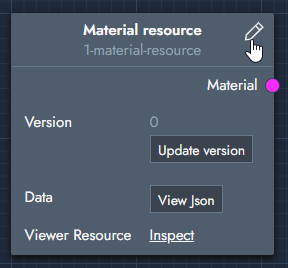
Alternatively, in the graph editor simply click the pen tool icon in the resource node to access the edit mode.
Deleting existing resources
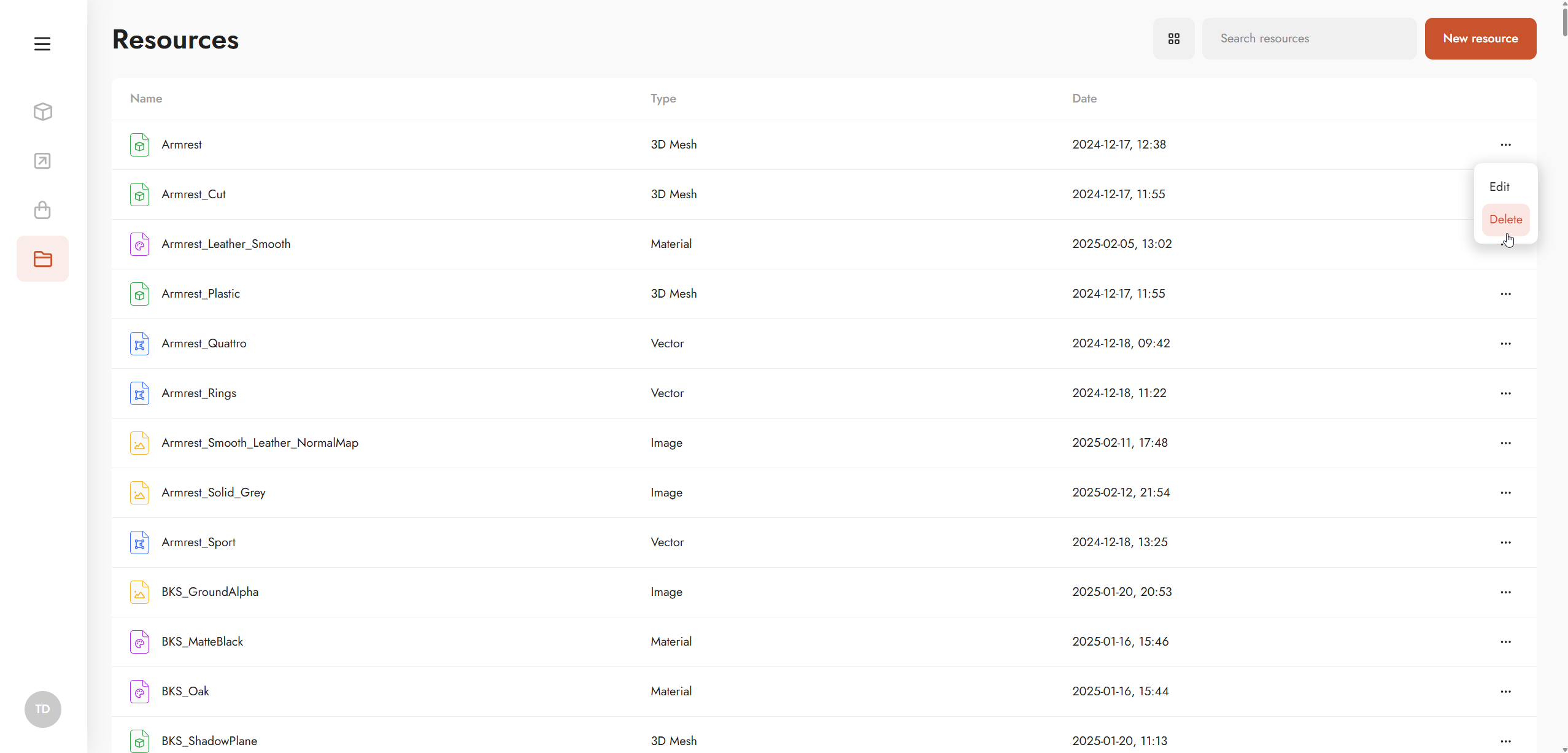
Existing resources can be deleted by selecting the DELETE option in the context menu ... .
Downloading existing resources
To download files attached to an existing resource, simply edit a resource and click the download icon.