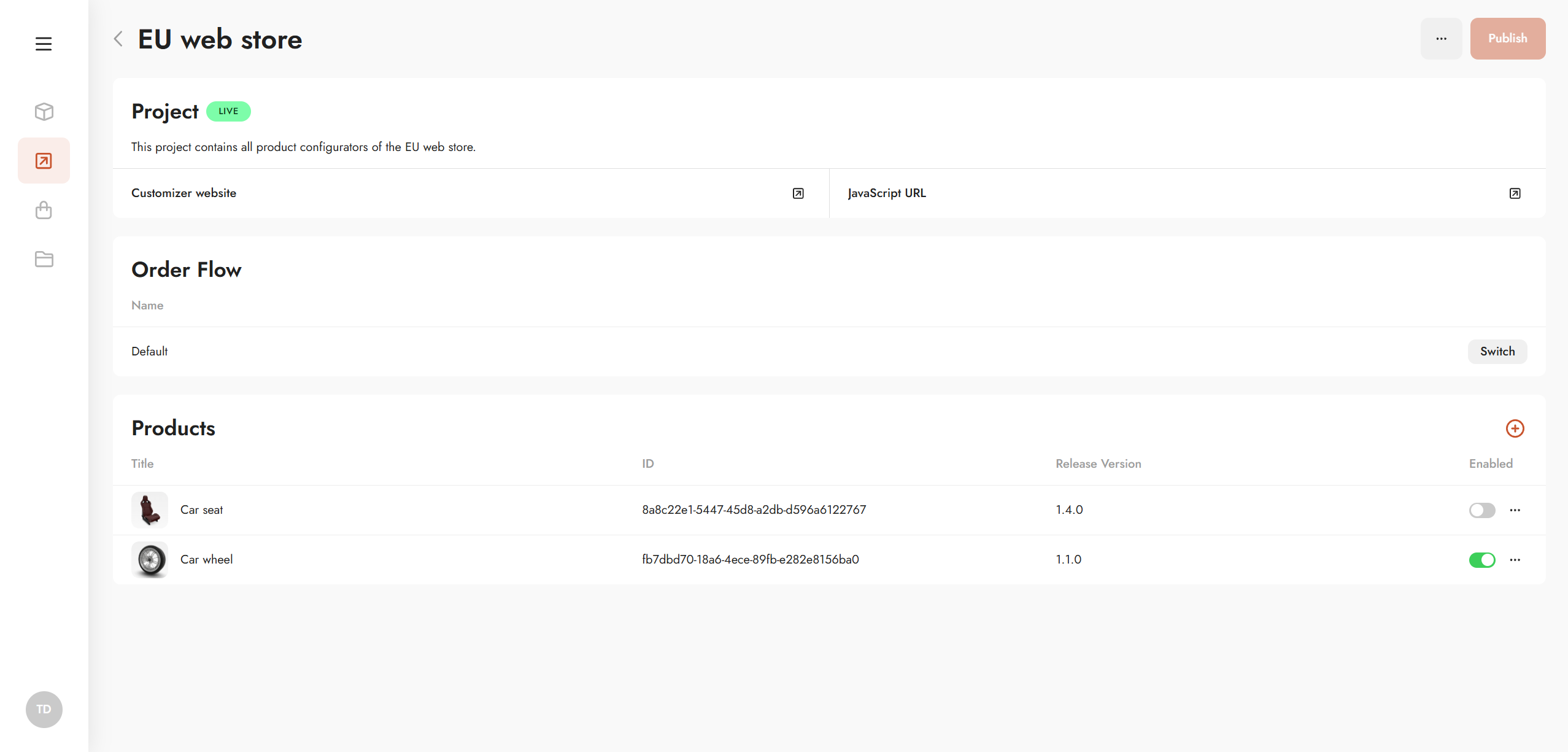
Within Project Setup, you define the scope for project publishes. Publishing a project brings the entire project live and generates:
-
A standalone customizer website
-
A JavaScript URL for embedding a selection of products in external websites or platforms
Order Flow Configuration
What is an order flow?
Order flows automate the processing of incoming orders linked to a project. They can include:
-
Automated email notifications
-
API integrations with third-party systems such as MES (Manufacturing Execution Systems)
Detailed instructions for creating custom order flows are available here: Commerce | Workflow Dashboard
Default order flow
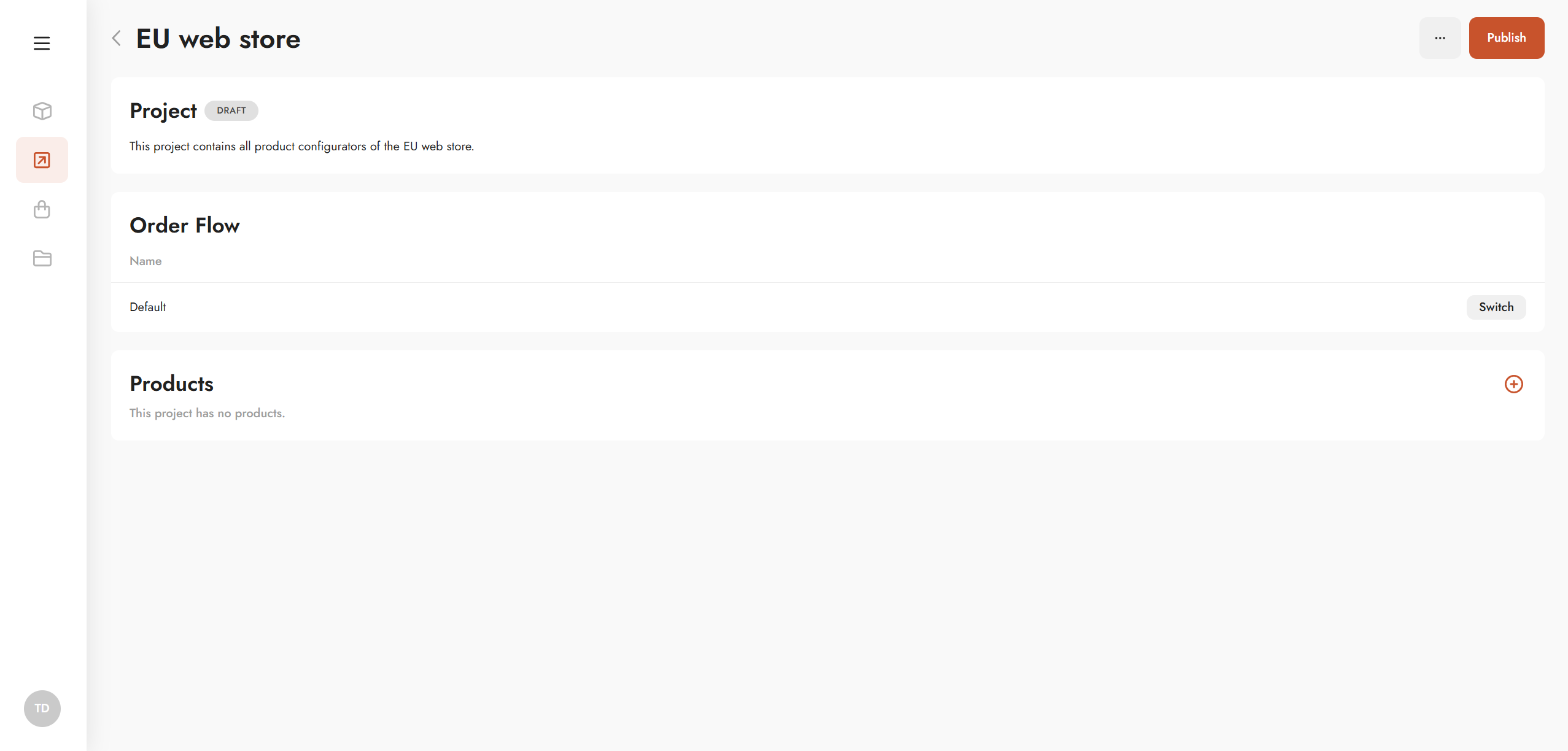
When a new project is created, it automatically uses the default Twikit order flow. This flow supports automatic generation of production files based on the configuration logic defined in the Graph Editor.
Switching the order flow
To assign a different order flow to a project, use the Order Flow selector in the project setup and choose the desired flow.
Managing Products in a Project
Adding products
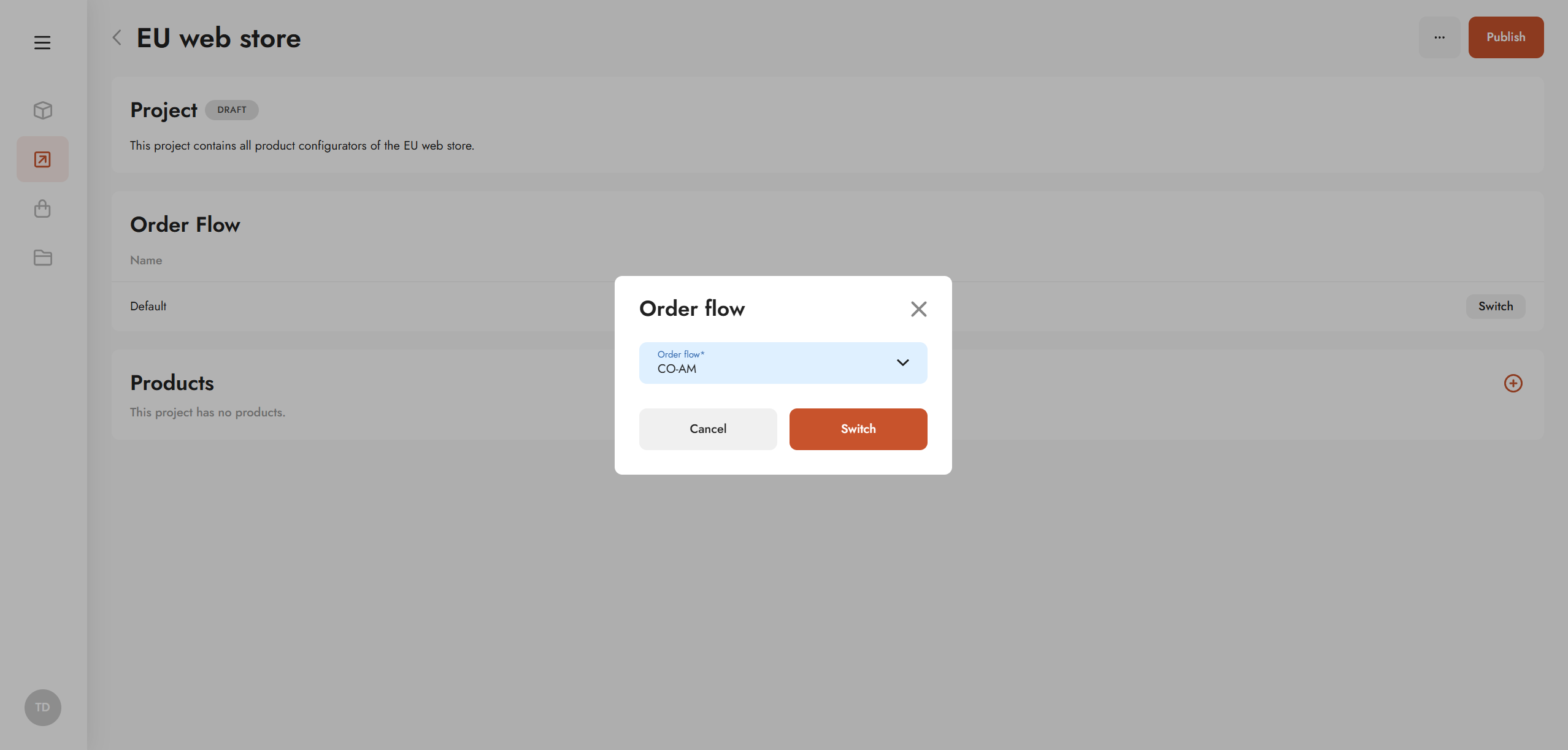
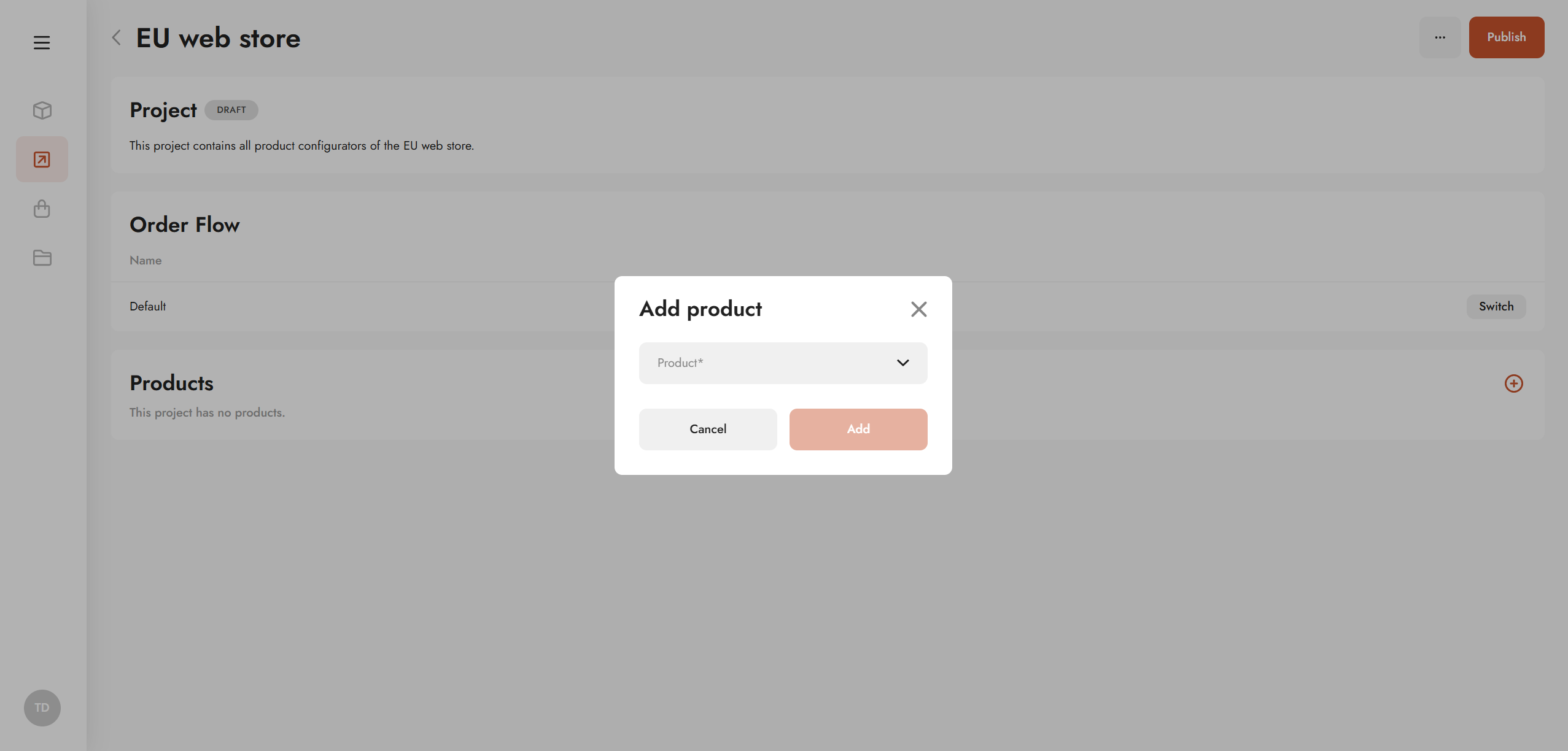
Add products to a project by clicking the + icon. In the Add Product dialog, select one or more products available on the platform.
Enabling or disabling products
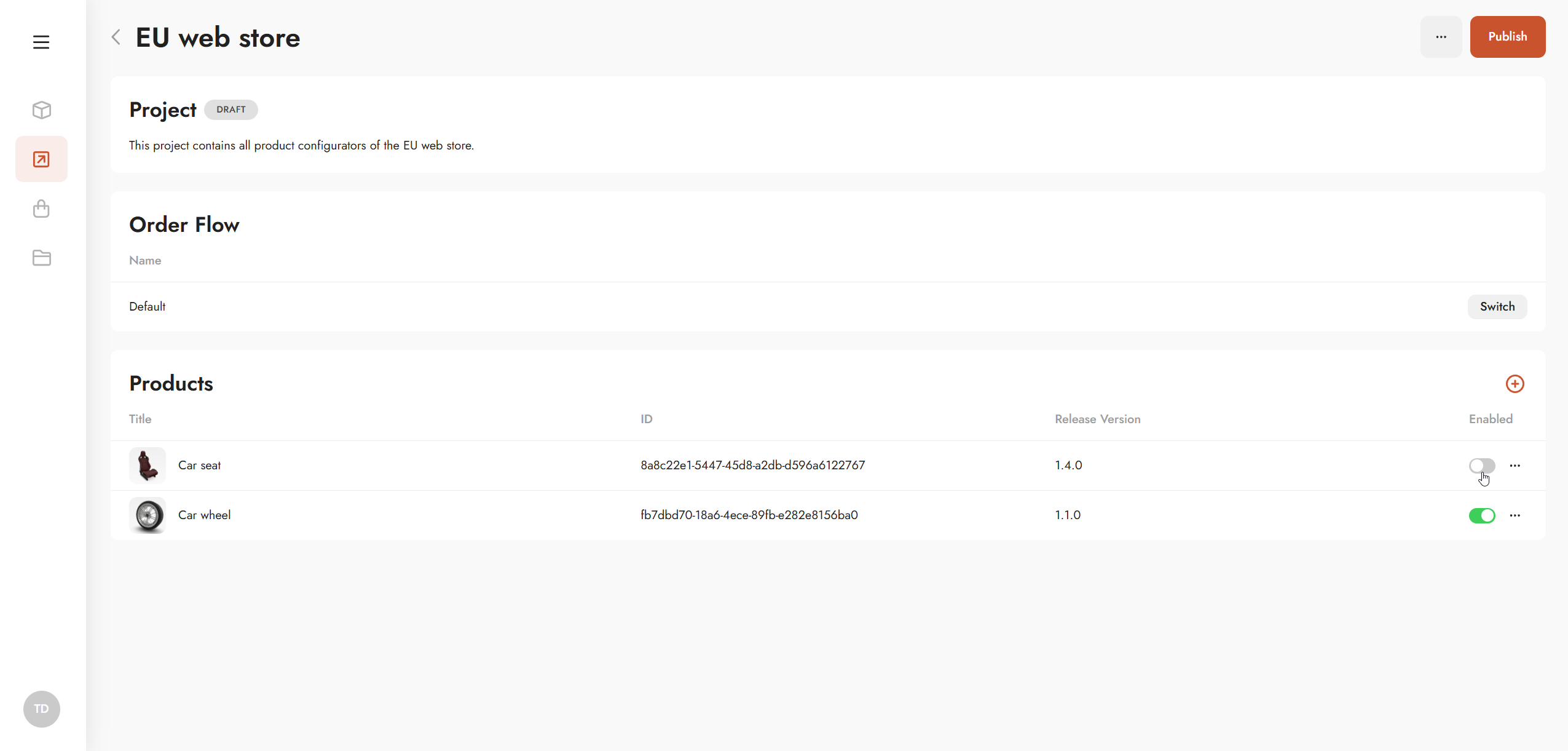
Each product can be enabled or disabled using the toggle next to it.
-
Enabled products are included in the next publish
-
Disabled products remain in the project but are excluded from the live setup
This is useful for products that are still in development or not yet ready for release.
Removing products
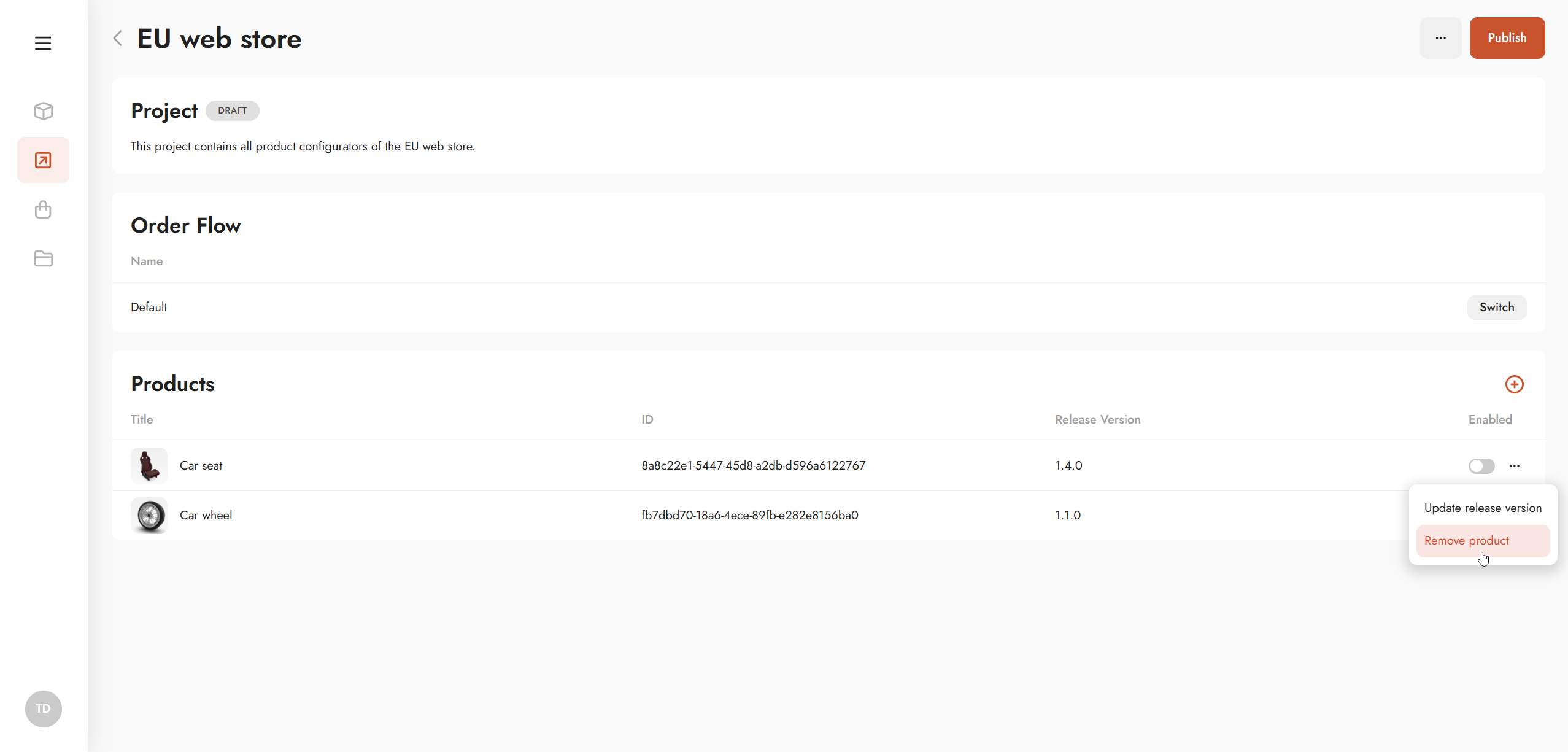
Remove a product from a project via the product context menu.
This action only removes the product from the project scope.
The product itself remains available on the platform and can be re-added later.
Product Release Versions
Each product can have multiple release versions, as defined in Product Setup: Products | Setup
Selecting a release version
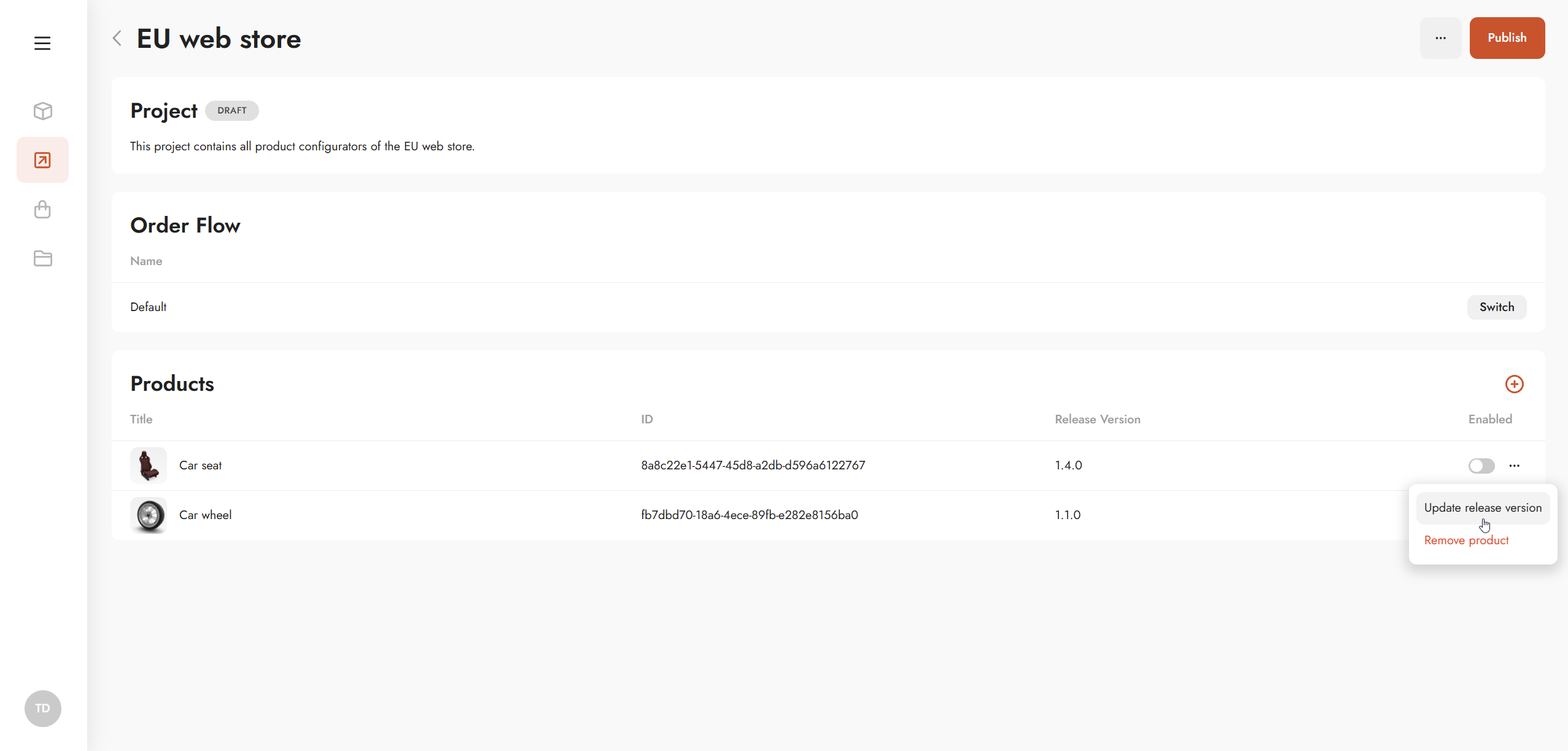
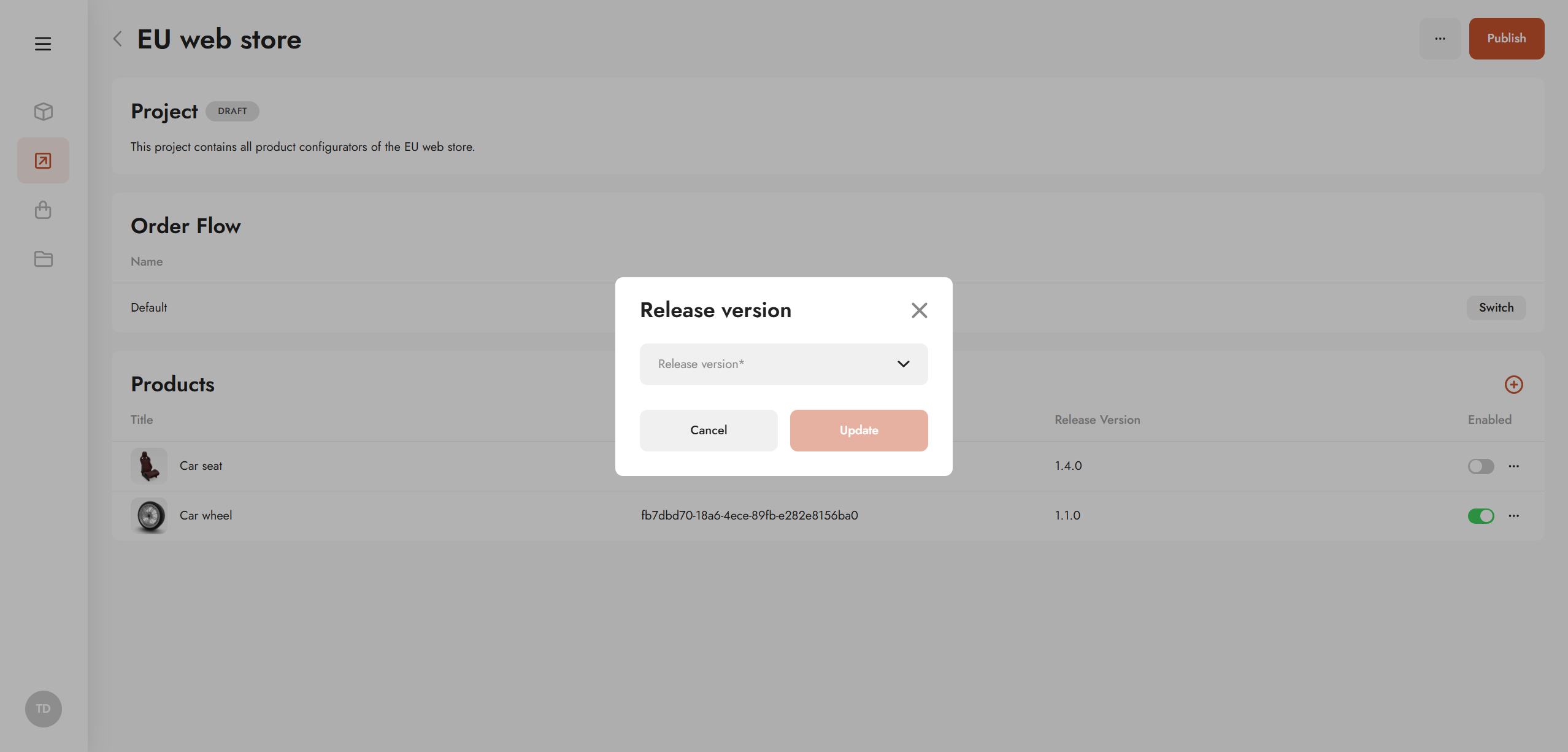
To change the release version used in a project:
-
Open the product context menu
-
Select Change release version
-
Choose the desired version
The selected version will be used in the next project publish.
Publishing a project
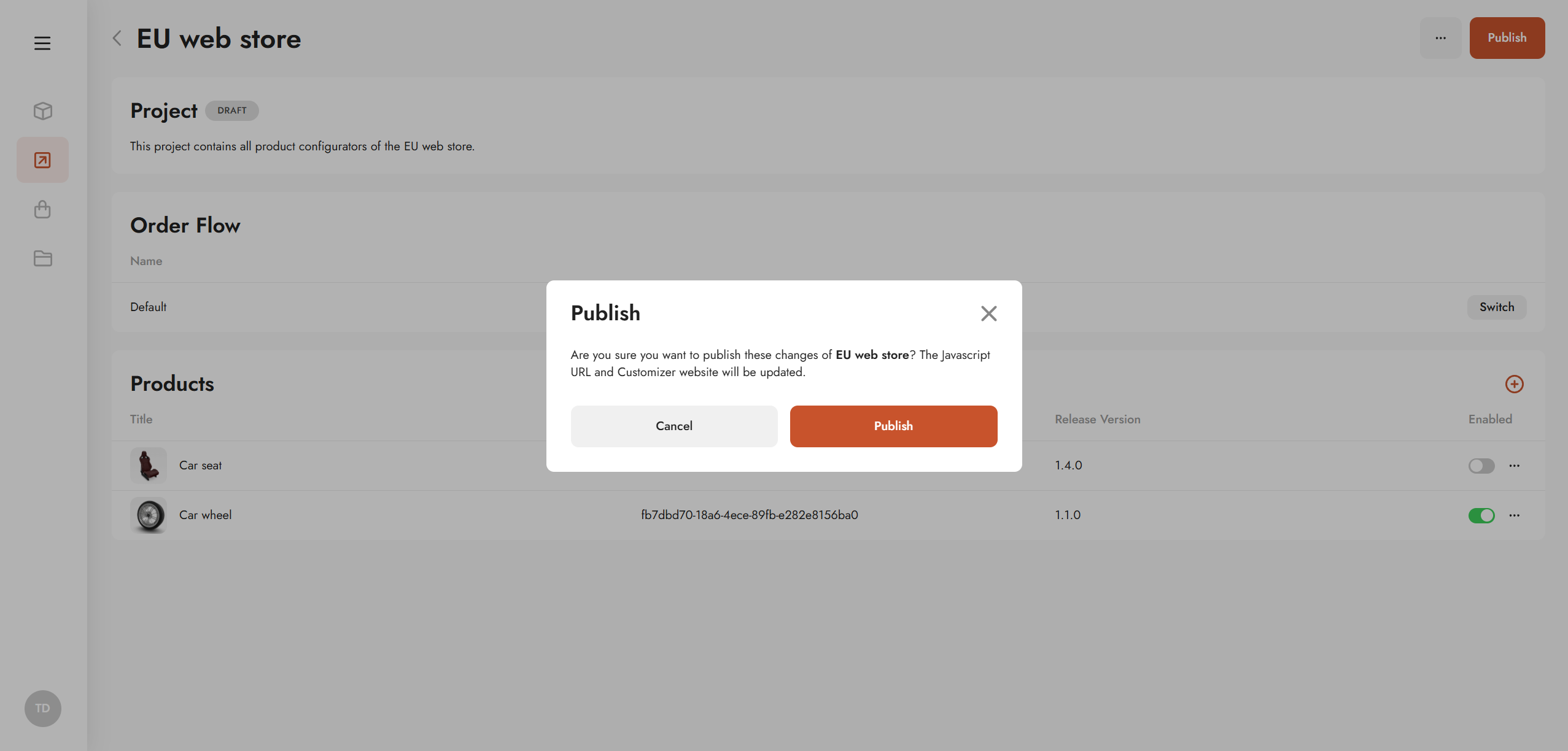
Publish the project using the Publish button.
Each publish:
-
Creates or updates a unique standalone customizer website
-
Updates the associated JavaScript URL
-
Uses the latest enabled products and selected release versions
Standalone Customizer Website
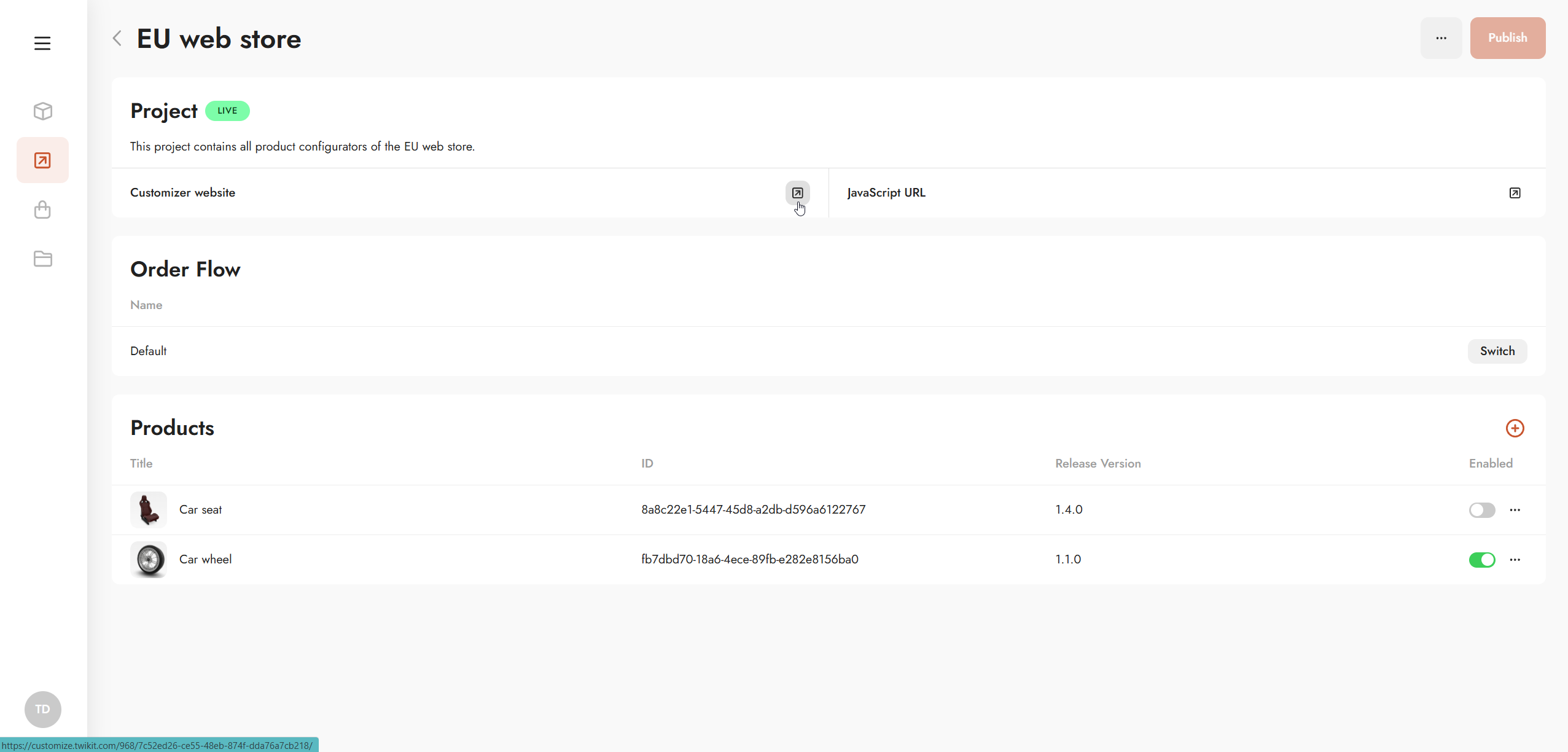
The customizer website serves as a live platform, displaying all products included in the project's scope.
Purpose
The customizer website is a live environment that displays all products included in the project scope.
Access
Use the redirect icon to open the live customizer website.
Product configuration and orders
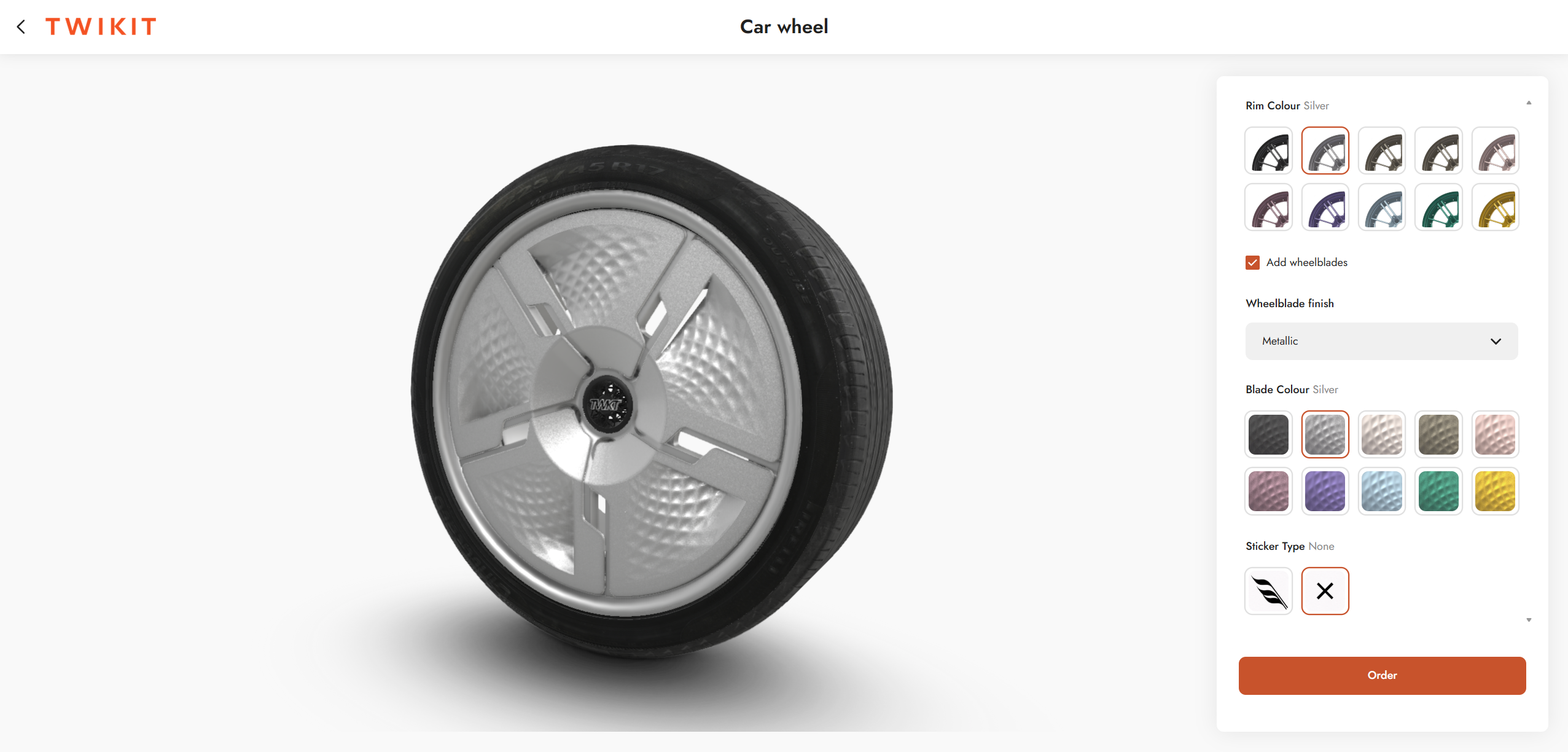
Visitors can configure and order products directly from the website.
More details on order handling can be found here: Commerce
UI Theming
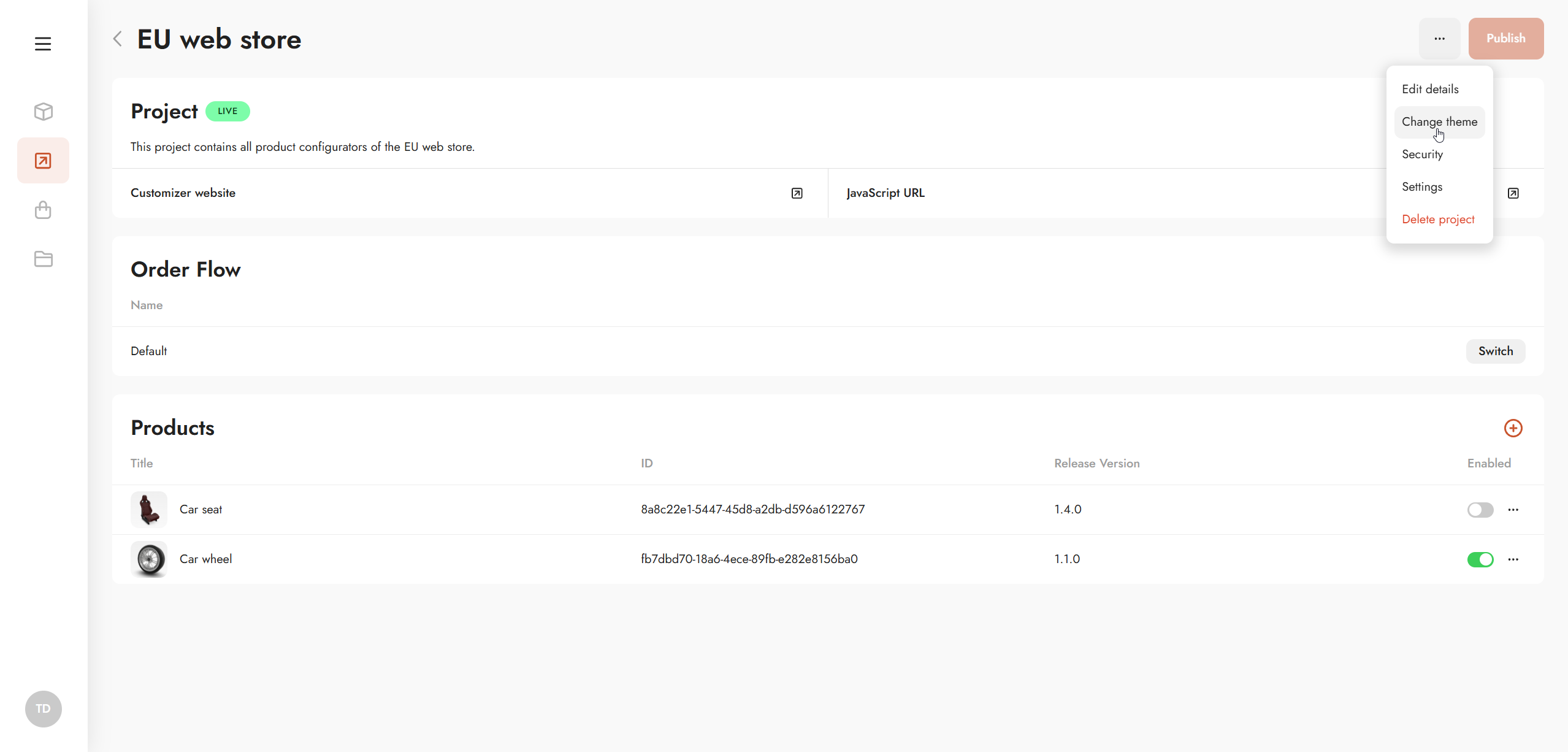
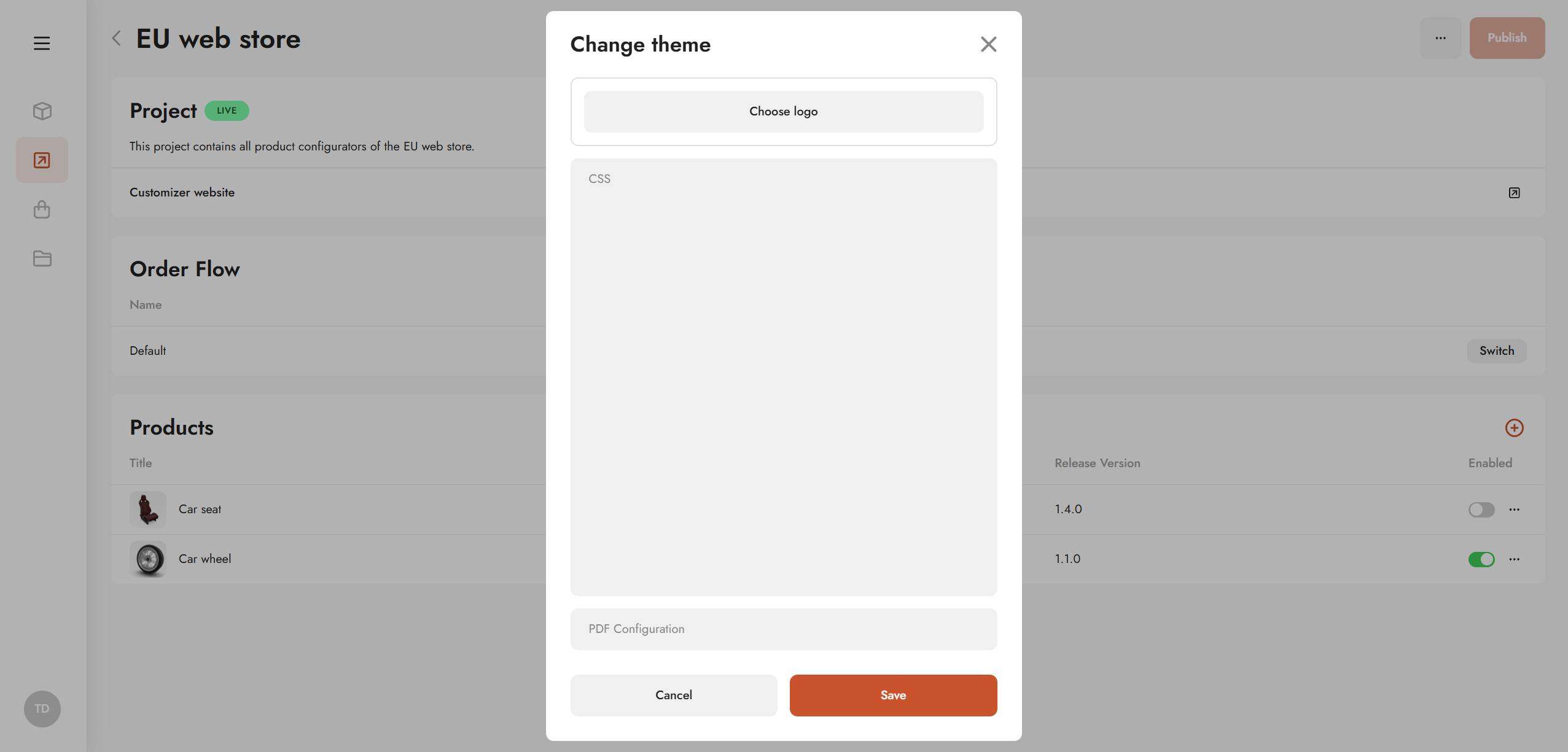
You can customize the look and feel of the standalone website via the Theme settings in the project context menu.
Available theming options include:
-
Fonts
-
Logos
-
Color schemes
Password Protection
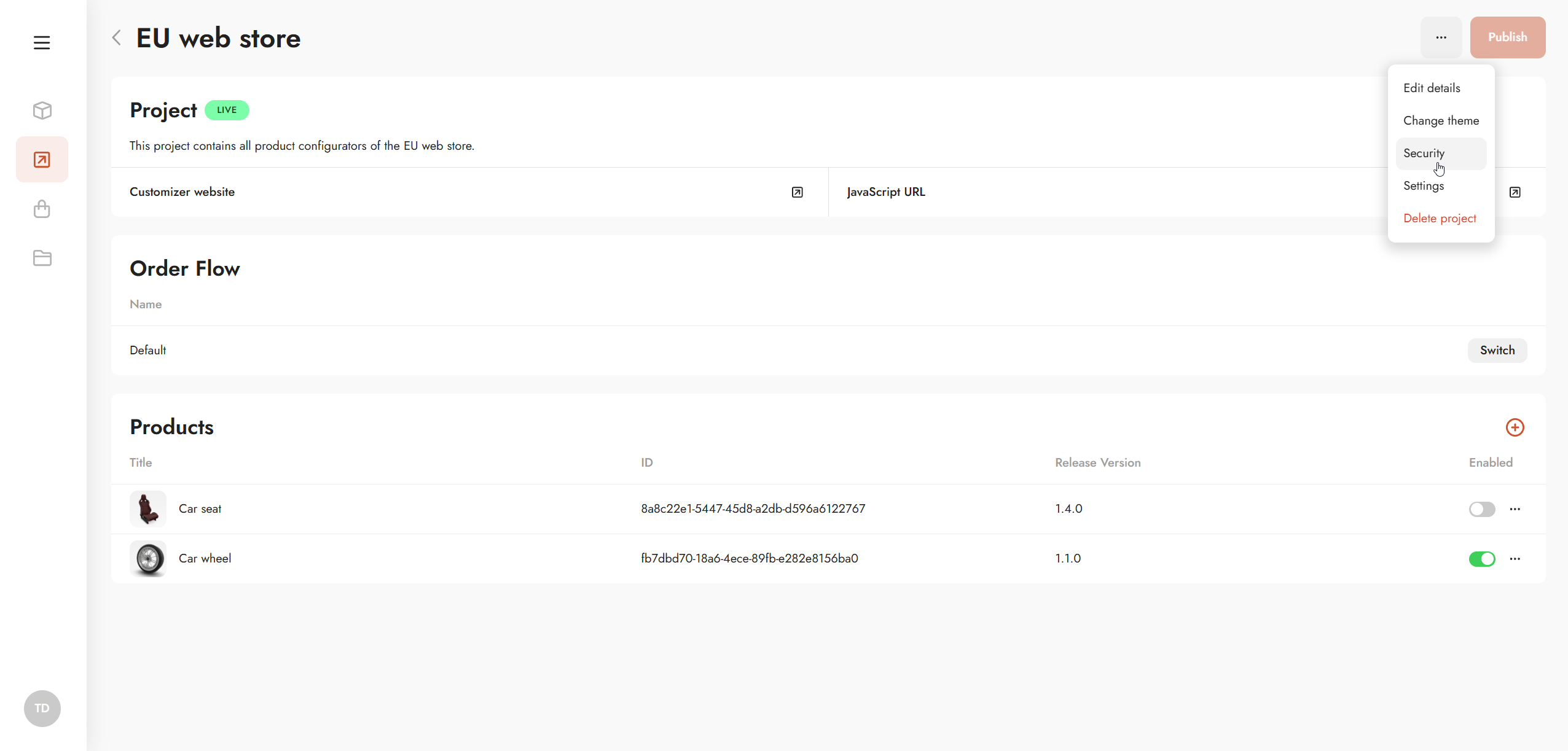
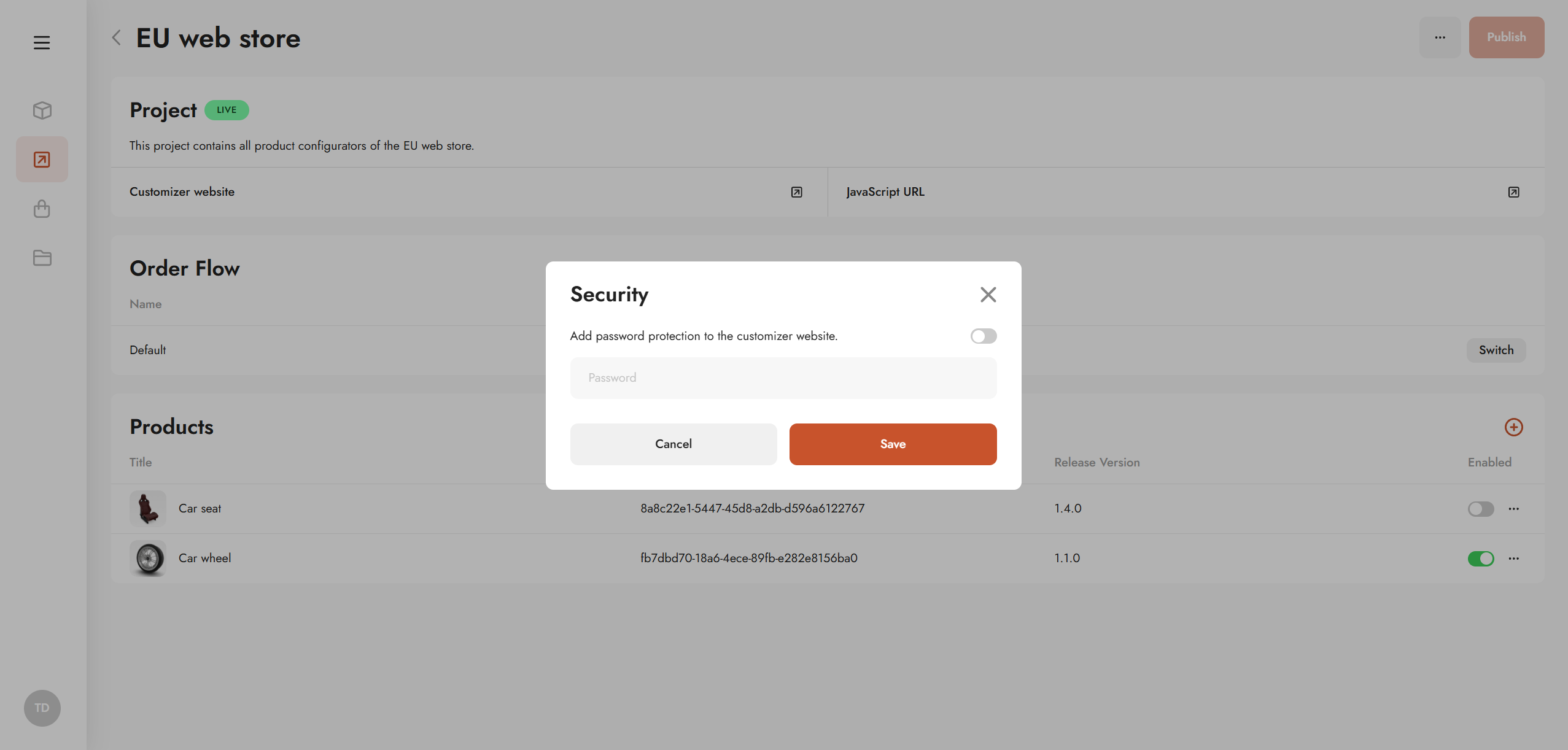
To restrict access to the standalone customizer website, password protection can be enabled via Project Security in the project context menu.
When enabled, only users with the correct password can access the customizer, helping to protect confidential or pre-release content.
Project Settings
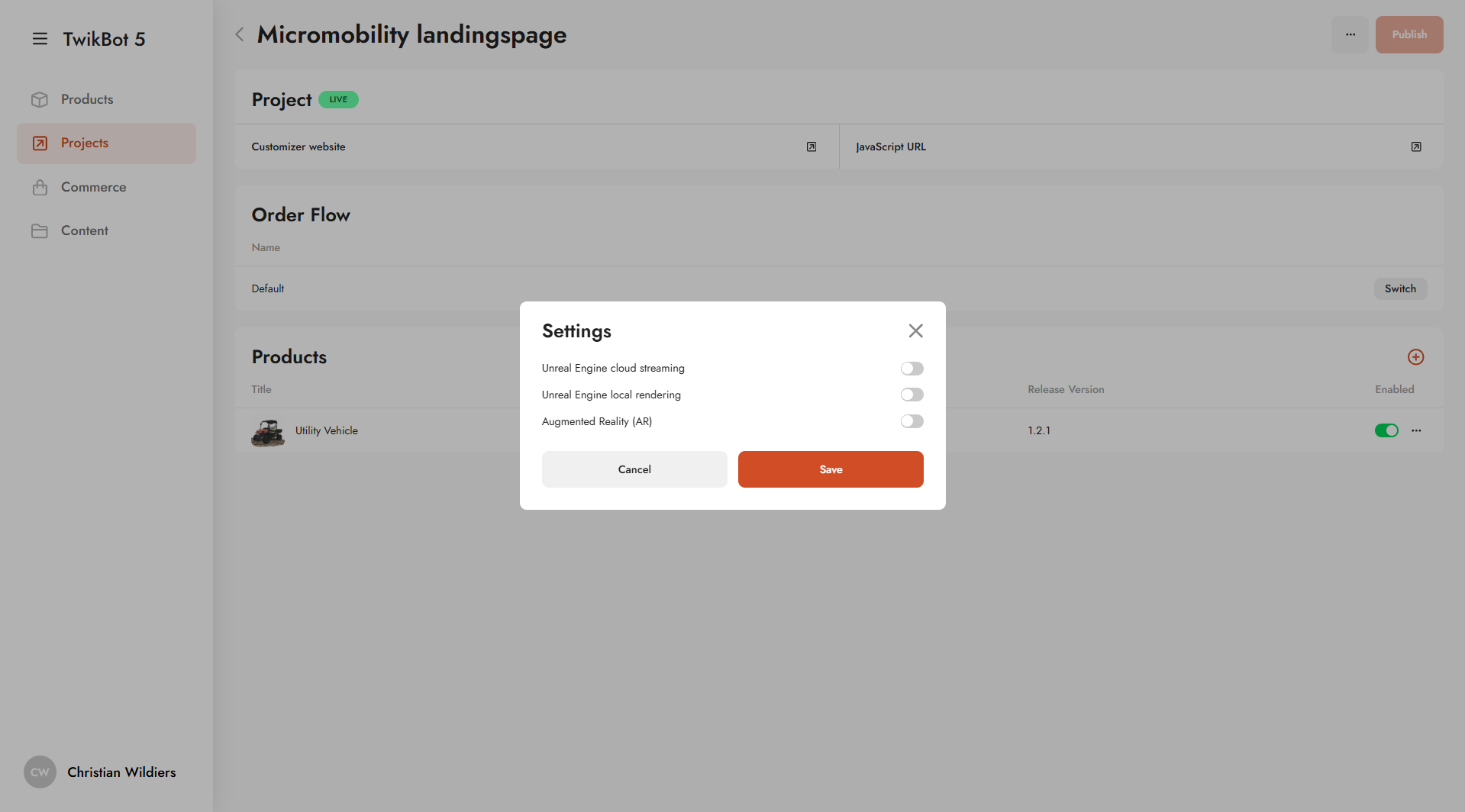
Within Project Settings, you can configure the following options:
Unreal Engine integration
Define whether the standalone configurator acts as an interface to Unreal Engine:
-
Cloud streaming
The visualization canvas uses pixel-streamed Unreal Engine instead of WebGL rendering. -
Local rendering
The visualization canvas is replaced by a trackpad, allowing the standalone configurator to act as a remote control for a local Unreal Engine instance.
An IP address and port (default: 5555) must be provided when opening the configurator.
Augmented Reality
Enable or disable the Augmented Reality icon on the canvas, allowing customers to view configured products in AR during configuration.
JavaScript URL
Each published project generates a JavaScript URL that allows the project to be embedded into existing websites or e-commerce platforms.
Integration details and implementation guidelines can be found in the Development documentation.